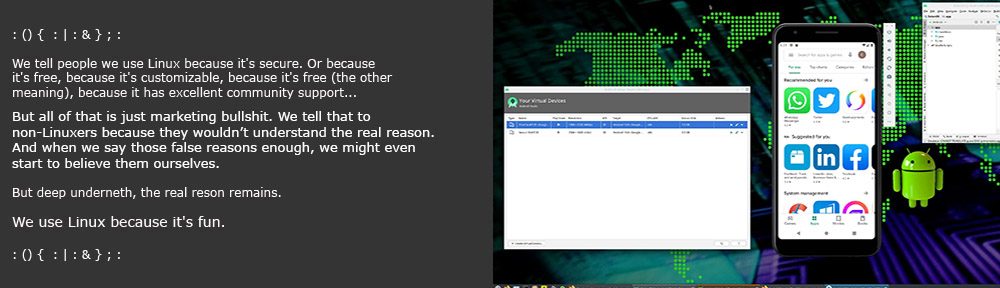
Exton|OS 64 bit – based on upcoming Ubuntu 26.04 LTS – with KDE Plasma 4:6.6.2, Android Studio with an excellent Android Emulator and Refracta Snapshot :: Build 260319

NEWS 260319 ABOUT Exton|OS with KDE Plasma Desktop, Android Studio and Refracta Snapshot
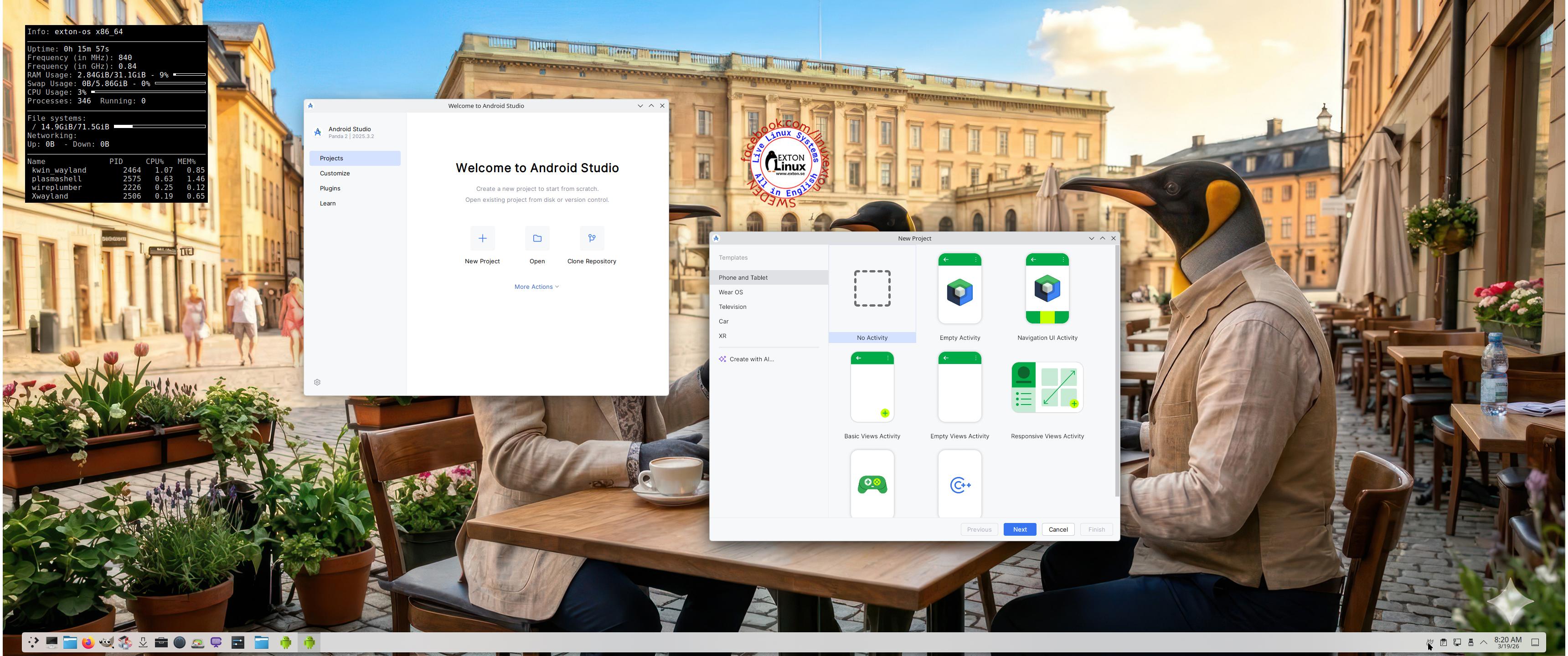
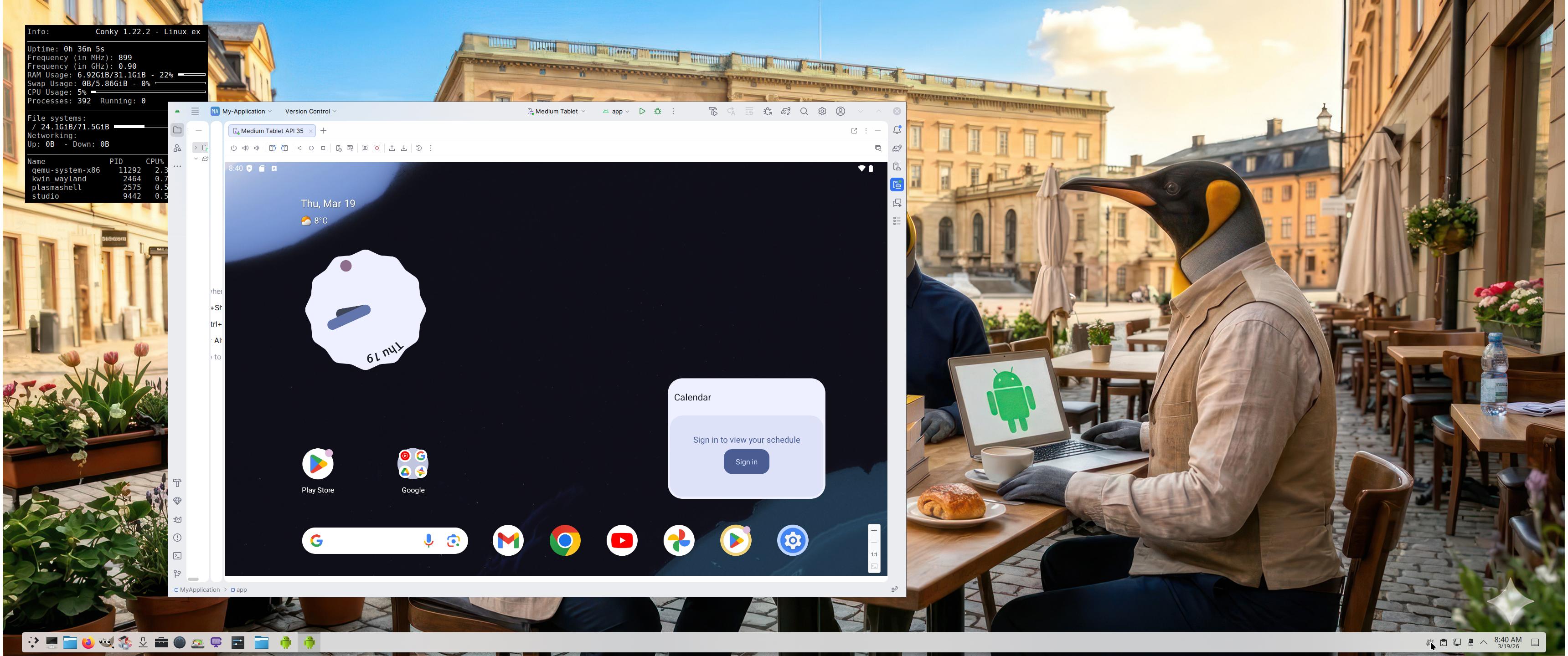
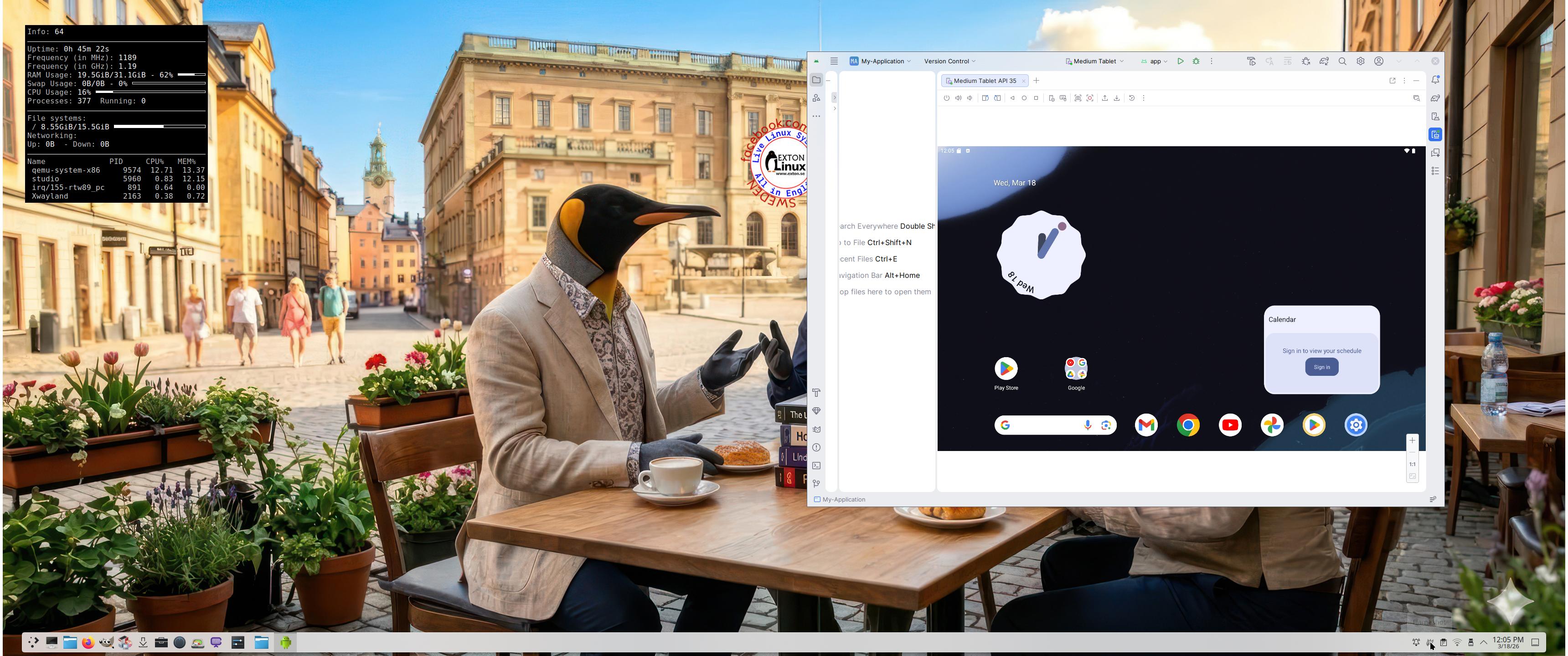
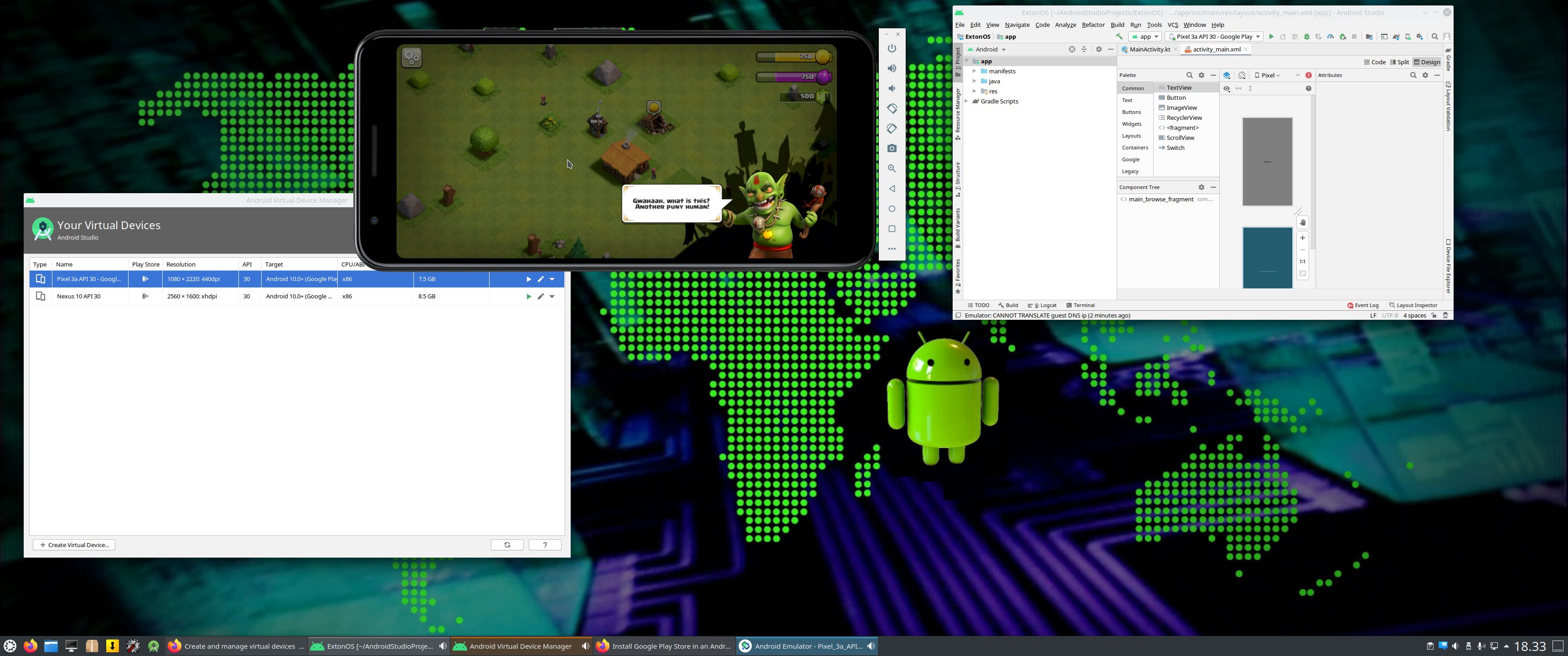
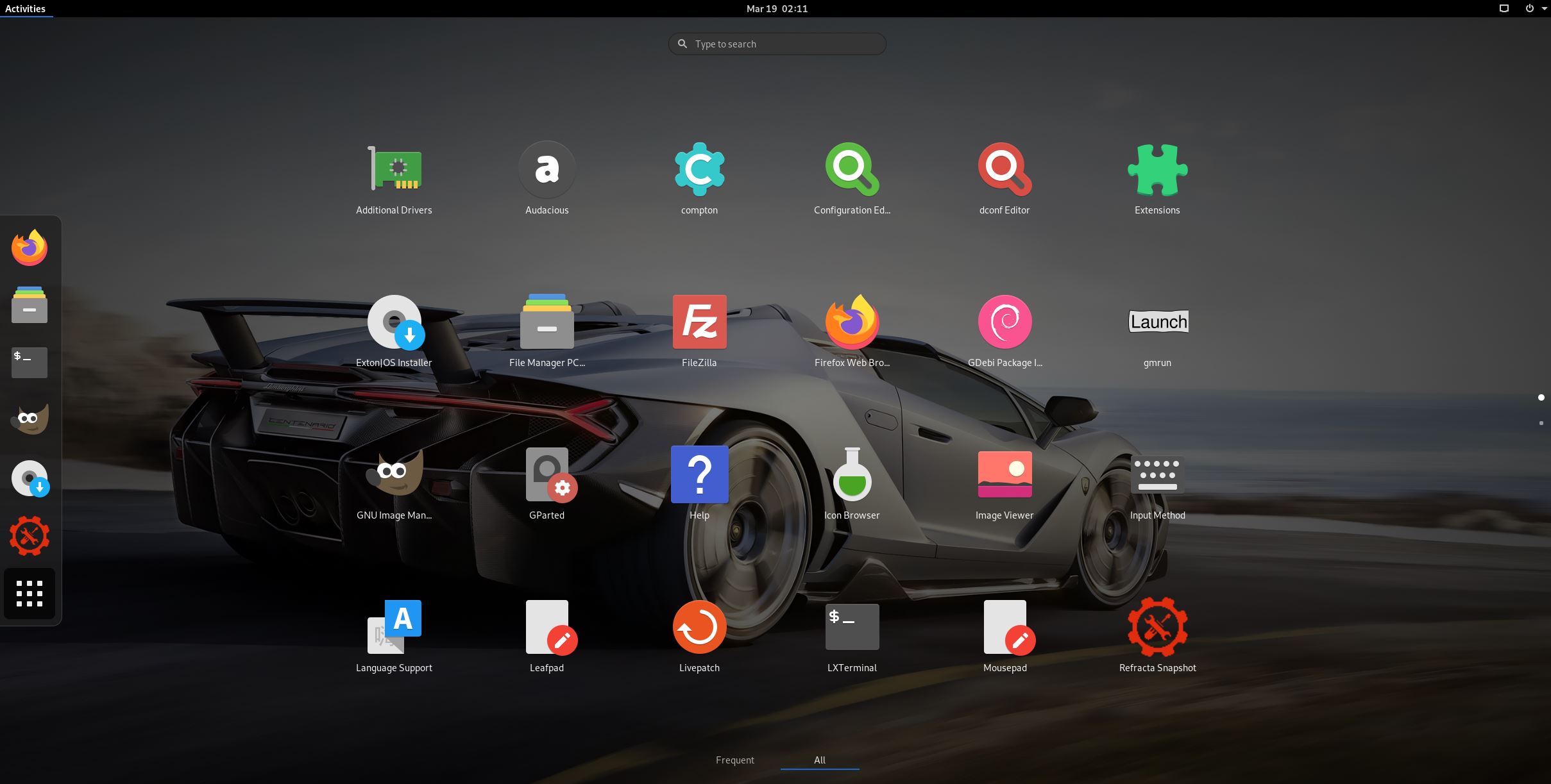
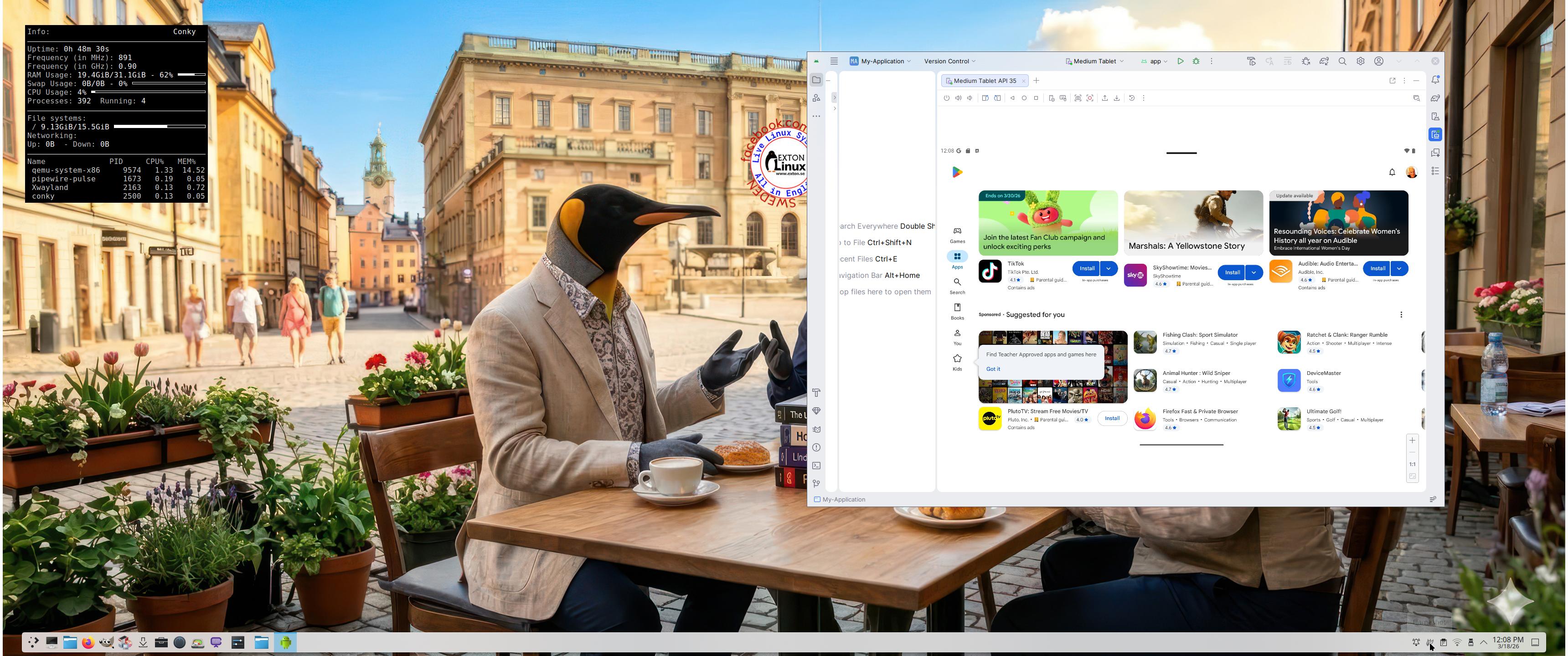
The Desktop Environment in this Exton|OS build is KDE Plasma 4:6.6.2. Plasma is made to stay out of the way as it helps you get things done. But under its light and intuitive surface, it’s a powerhouse. So you’re free to choose ways of usage right as you need them and when you need them. Program content in build 260319: Most important are Refracta Snapshot and Android Studio Panda 2 with an excellent Android Emulator. You can run several Android systems directly in Exton|OS. Also with GAPPS (Google Play Services and Google Play Store) pre-installed. Watch a screenshot when Android 15 is running with Google Play Store enabled. Other pre-installed programs are Firefox, VLC, Gimp and GParted. Also all necessary additions in order to install programs from source. Kernel 6.19.8-amd64-exton-os is used. All packages have been updated to the latest available version as at March 19, 2026. Study the NEW PACKAGE list. Google Chrome has been removed since it’s now possible to use Netflix in Firefox. Using Refracta Snapshot you can change everything to your liking and then create your own live installable Ubuntu 26.04 LTS Resolute Raccon system with Android Studio included. I mean create your own installable Ubuntu 26.04 LTS Live System once you have installed Exton|OS to hard drive. Ubuntu 26.04 LTS will be released in a stable version 260423. Ubuntu 26.04 LTS will be supported until June, 2031…

IMPORTANT NOTE
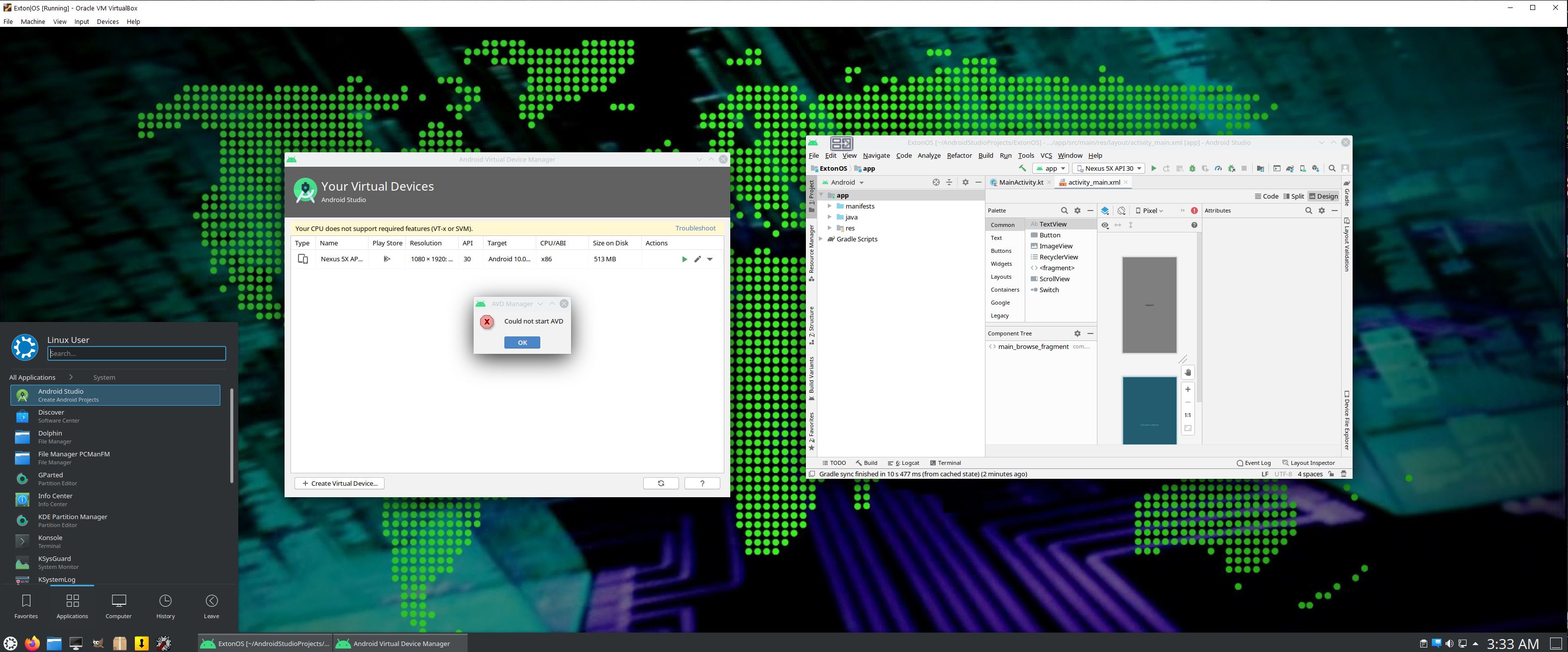
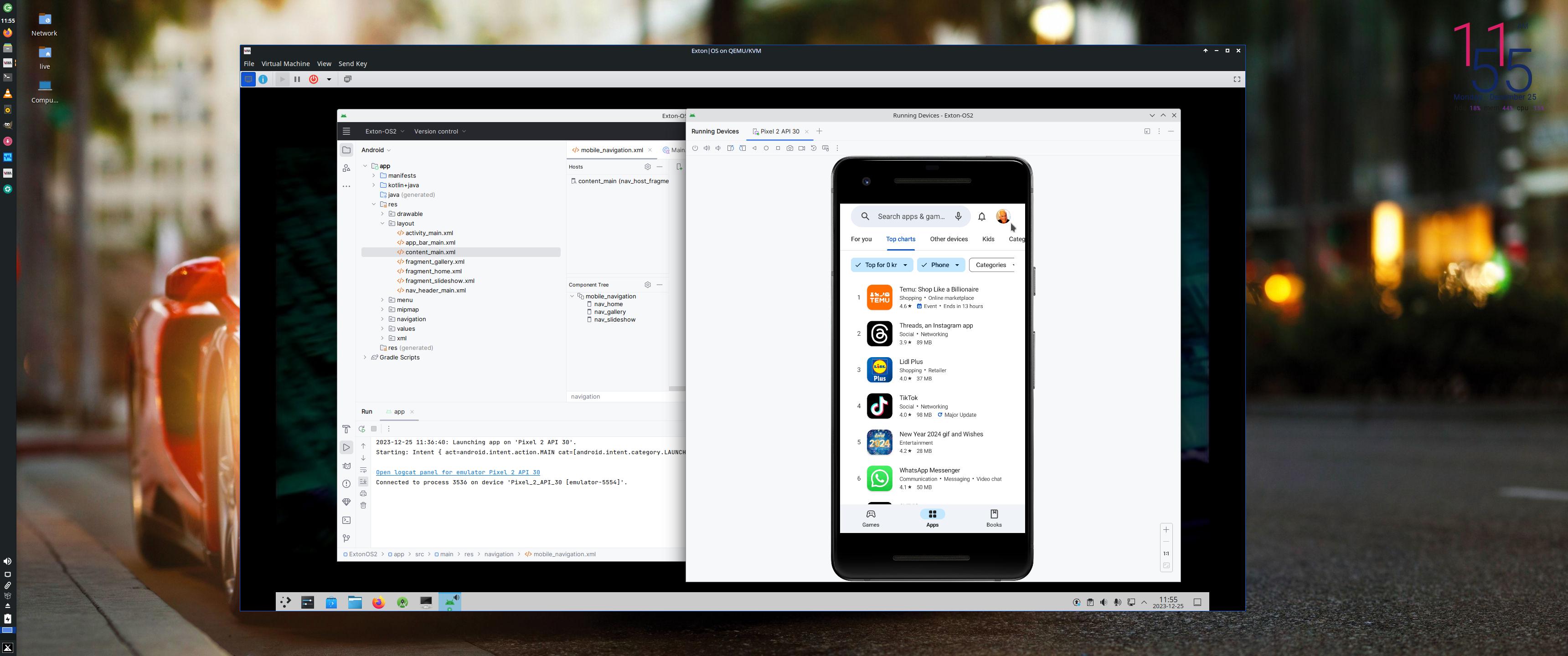
: You can’t run Android Studio’s Emulator live if you don’t have plenty of RAM. (I.e. while running Exton|OS from a DVD or USB stick). On one of my computers with 32GB RAM I could run Android Studio without problems. On another with 8GB RAM I could see that the RAM was consumed almost immediately (while running Android Studio). Then the computer was “frozen”. You can also not run the emulator In VirtualBox and VMware. You’ll have to install Exton|OS to a “real” hard drive before you can use the Android emulator. In VirtualBox/VMware you will get an error message saying Your cpu does not support required features (vt-x or svm) screenshot. That’s because VirtualBox as of yet does NOT support nested virtualization. You CAN run the Android emulator in Qemu in Linux though. Watch this screenshot. Unfortunately the Android system runs rather slow. The best way to run the Android emulator is still to run it after an installation of Exton|OS to a “real” hard drive.

ABOUT VirtualBox
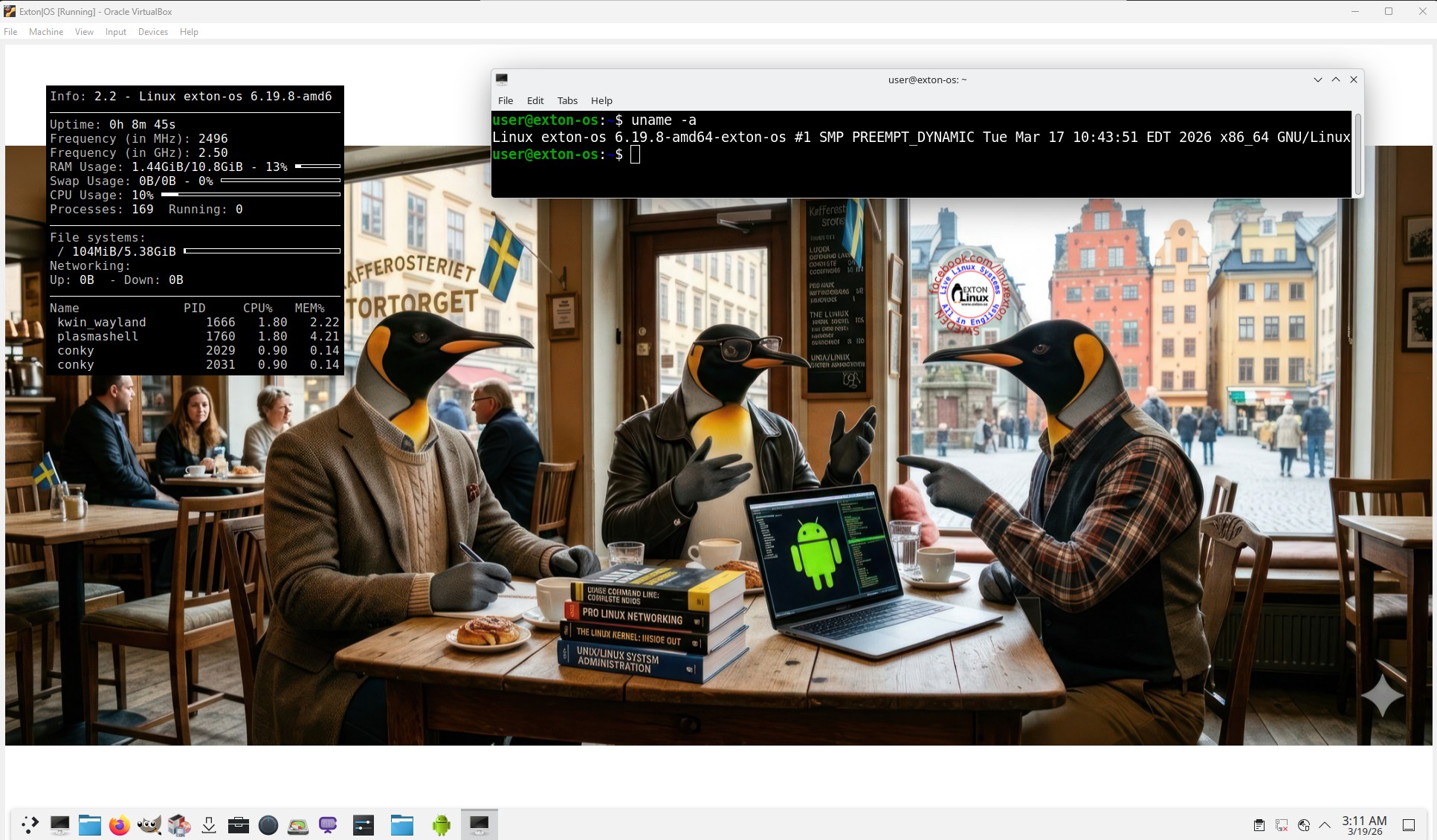
Exton|OS Build 260319 runs very well in VirtualBox. Watch this screenshot…

ABOUT VMware
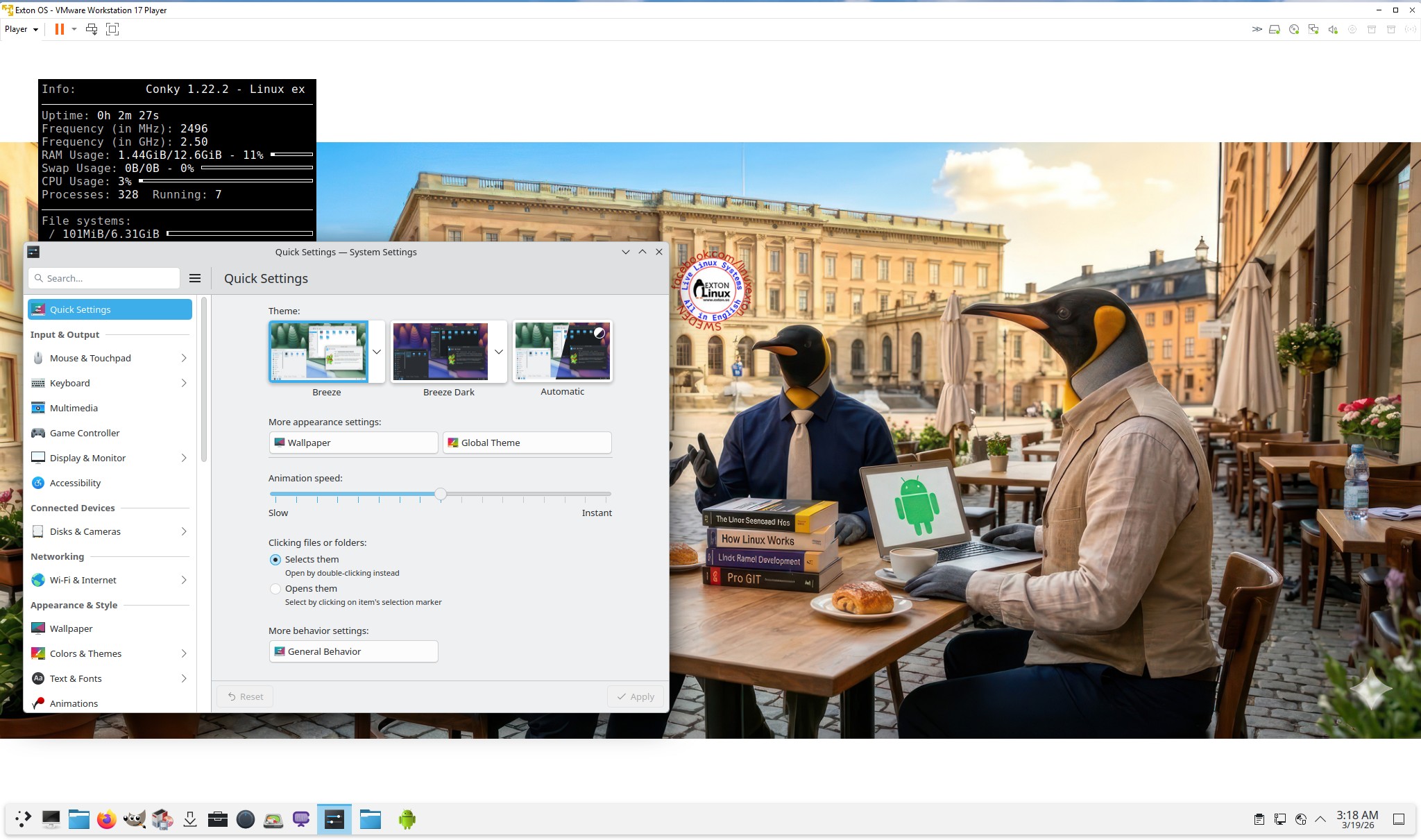
Exton|OS Build 260319 runs very well also in VMware. Watch this screenshot…

MOST IMPORTANT CHANGES IN BUILD 260319
1. This Exton|OS version is for UEFI and and Legacy computers.
2. I have installed and configured Android Studio. It has the very best Android Emulator with support directly from Google (the creator of Android). You can also develop your own Android apps in Android Studio.
3. Refracta Snapshot is pre-installed so that you can create your own Ubuntu 26.04 LTS System using Exton|OS as a template.

What’s new in kernel 6.19?

IMPORTANT ABOUT Refracta Snapshot
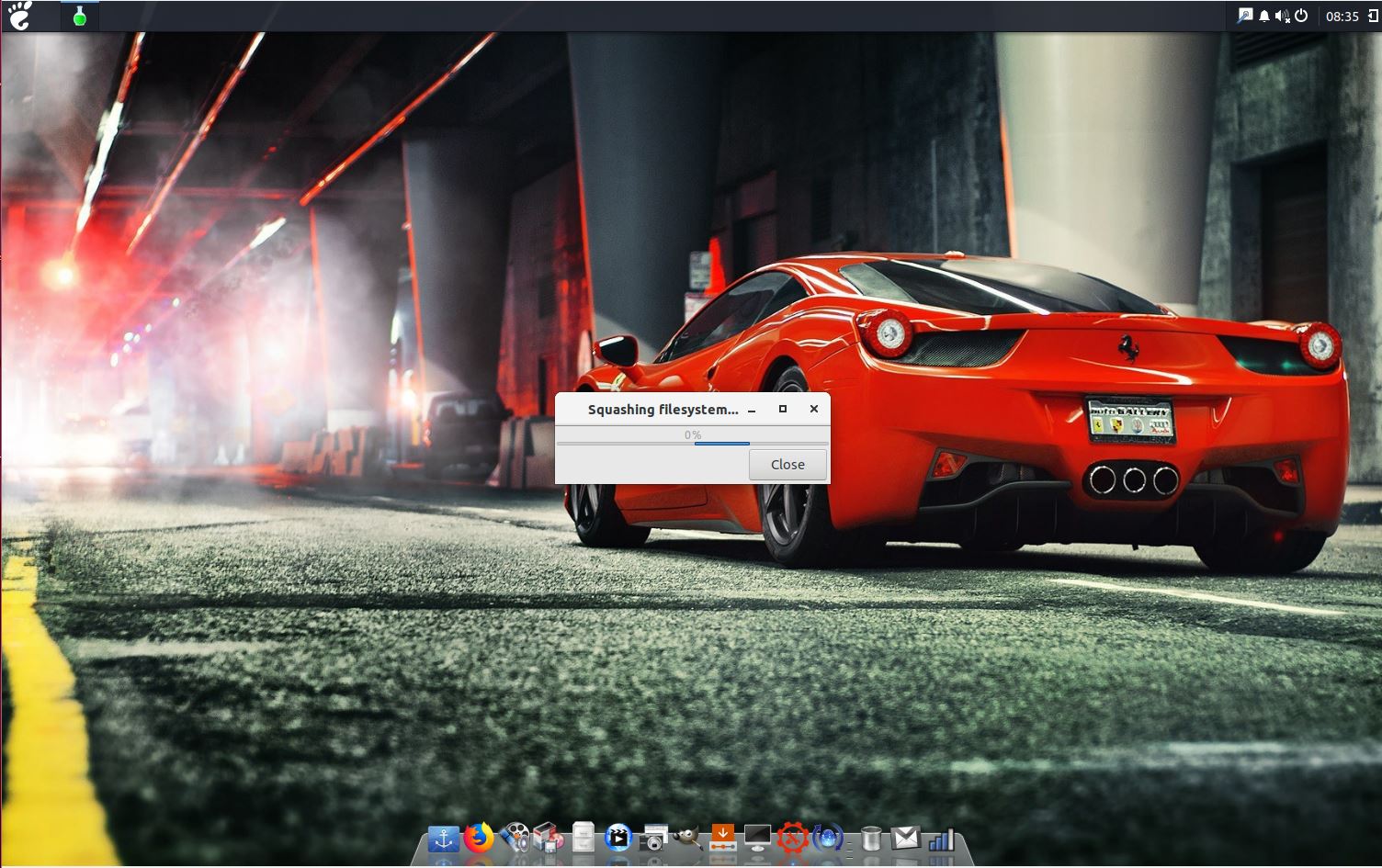
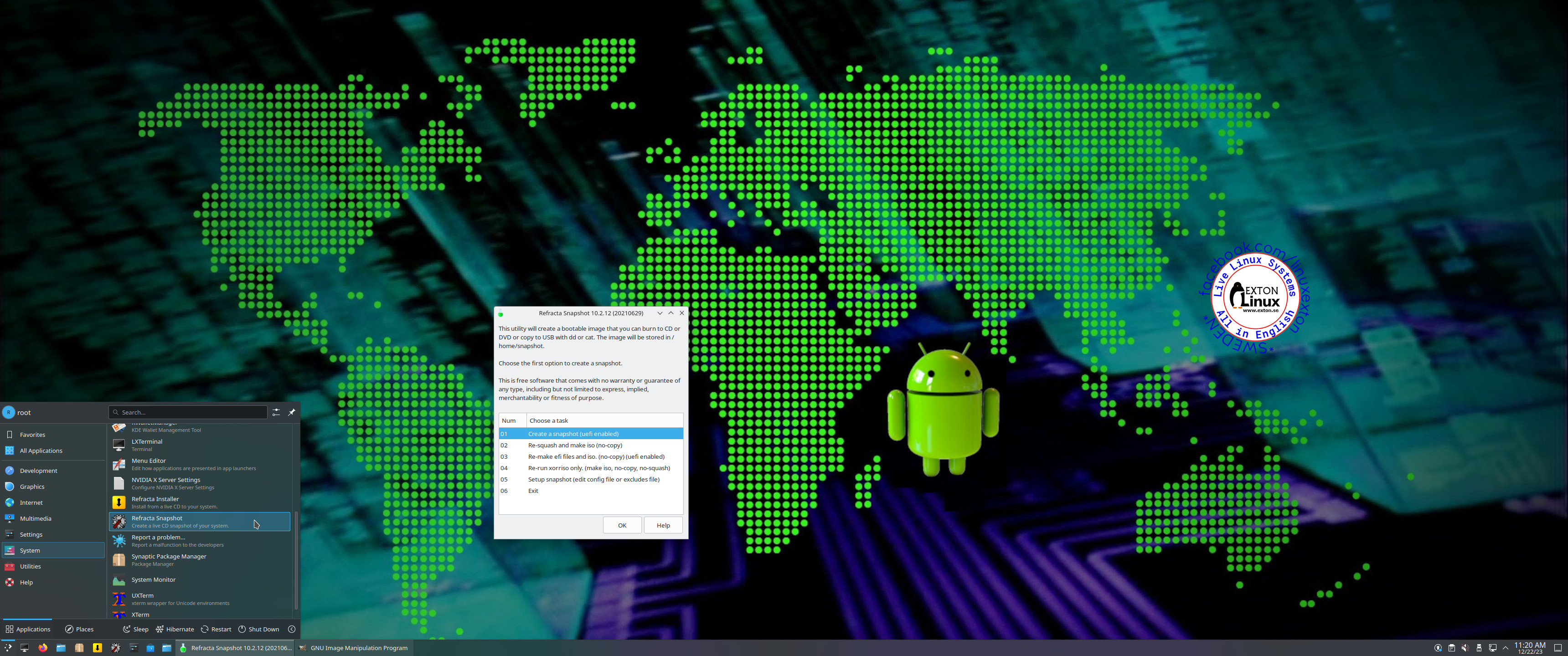
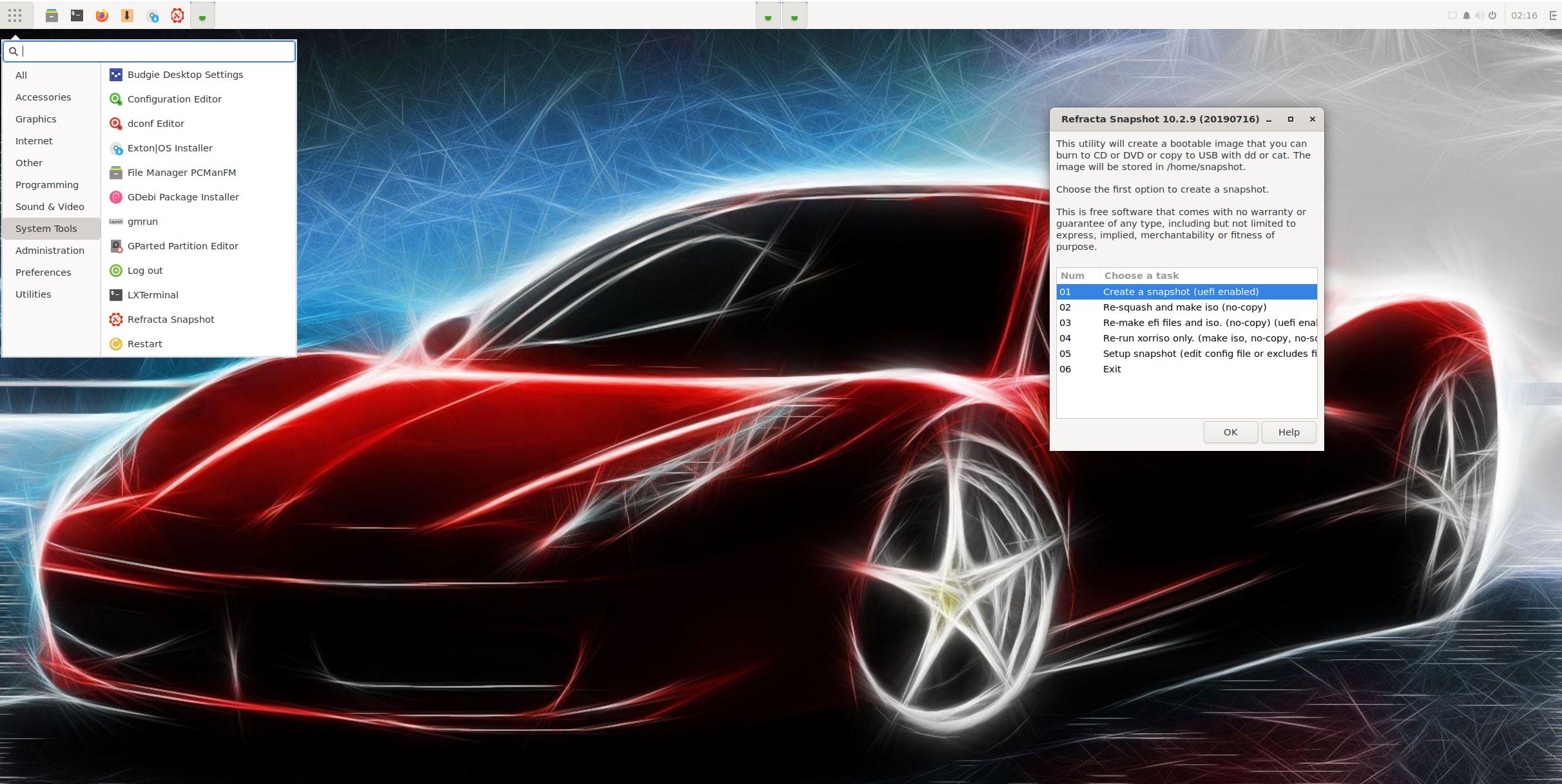
Refracta Snapshot is pre-installed in Exton|OS Build 260319. Use it to create your own live installable Ubuntu system. I mean create your own installable Ubuntu 26.04 LTS Live DVD once you have installed Exton|OS to hard drive. I mean change everything and then create a whole new Ubuntu live system. Start Refracta from Applications >> System Tools >> Refracta Snapshot. You don’t even have to install Exton|OS to hard drive before you can use Refracta Snapshot. If you have plenty of RAM you can create a new (your own!) Ubuntu system while running Exton|OS from DVD or a USB stick. Please note that the whole Refracta process (creating your new ISO) will take only 15 – 40 min! You’ll find the ISO in /home/snapshots. (Or change that in /etc/refractasnapshot.conf). The whole thing is very simple. NOTE: You may have to run the remaster process in three (3) steps before your new ISO is ready. (1, 2, 3). Watch a screenshot when Refracta Snapshot has started.

HOW TO use Android Studios Android Emulator
1. Start Android Studio from the menu 
2. Create a Virtual Device – Screenshot
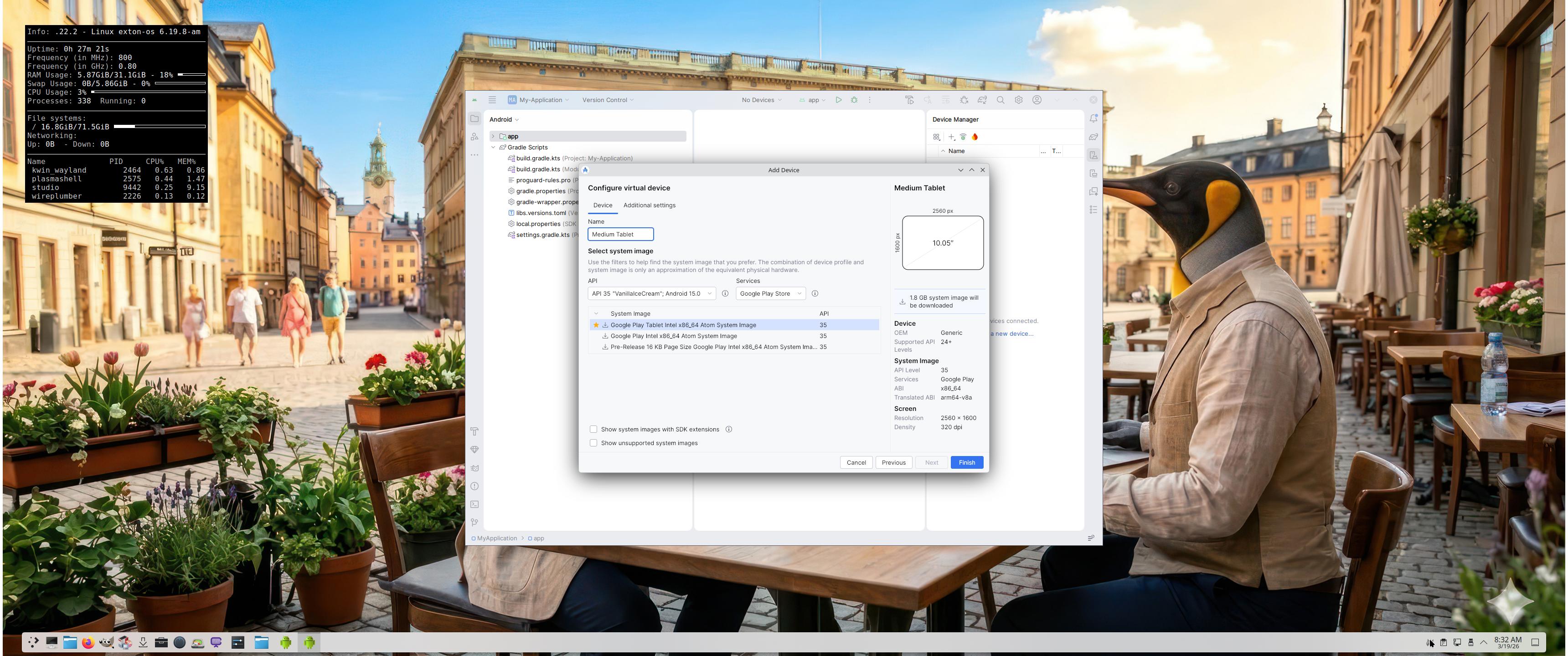
3. Select an Android System to run – Screenshot (some have Google Play Store pre-installed)
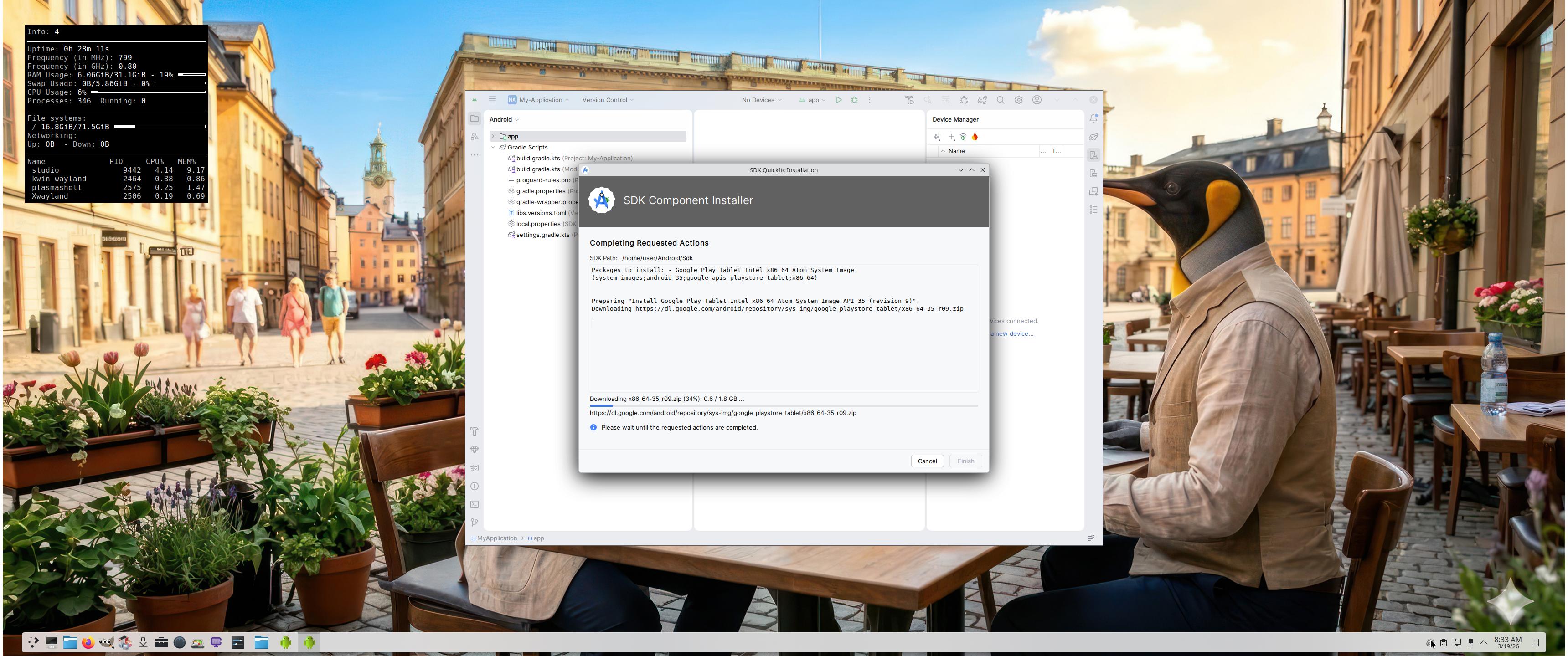
4. Download the selected Android image – Screenshot
5. Launch your selected AVD in the Emulator – Screenshot
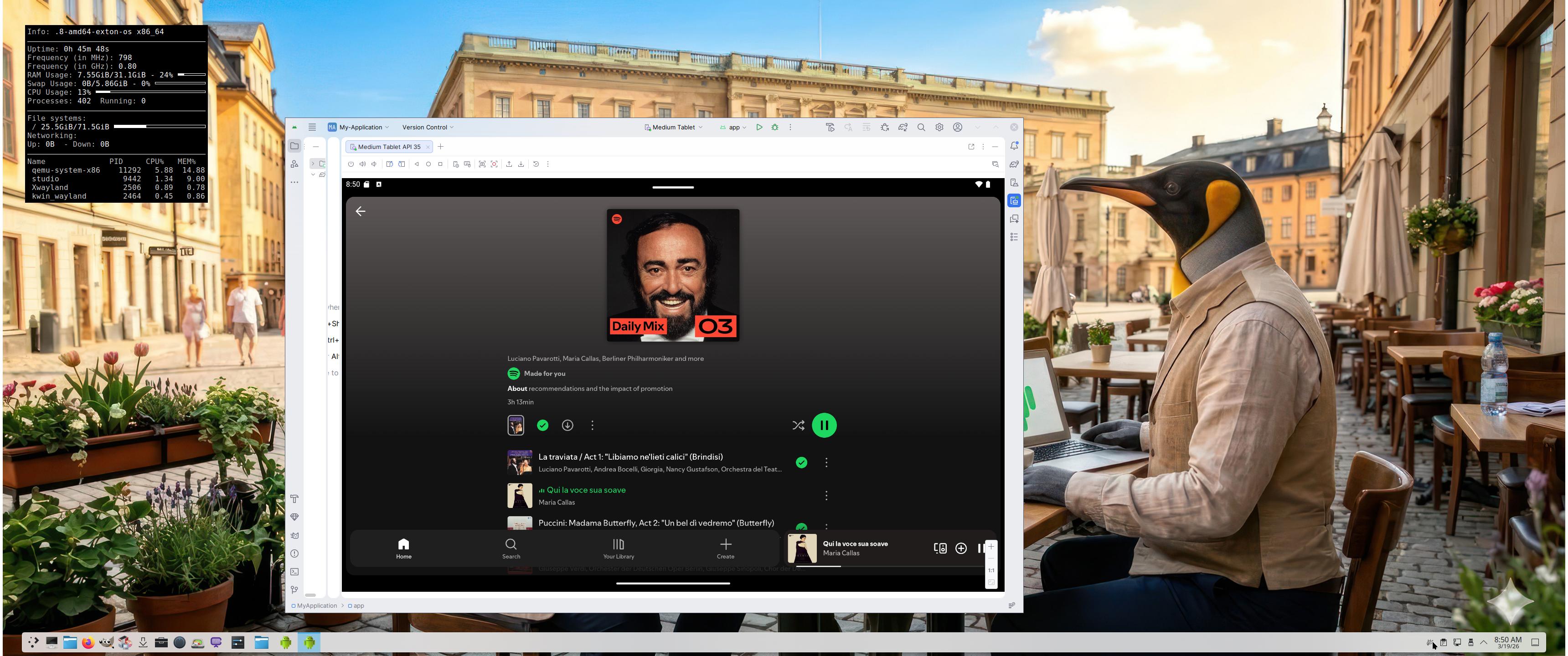
6. Spotify is running in the emulator – Screenshot
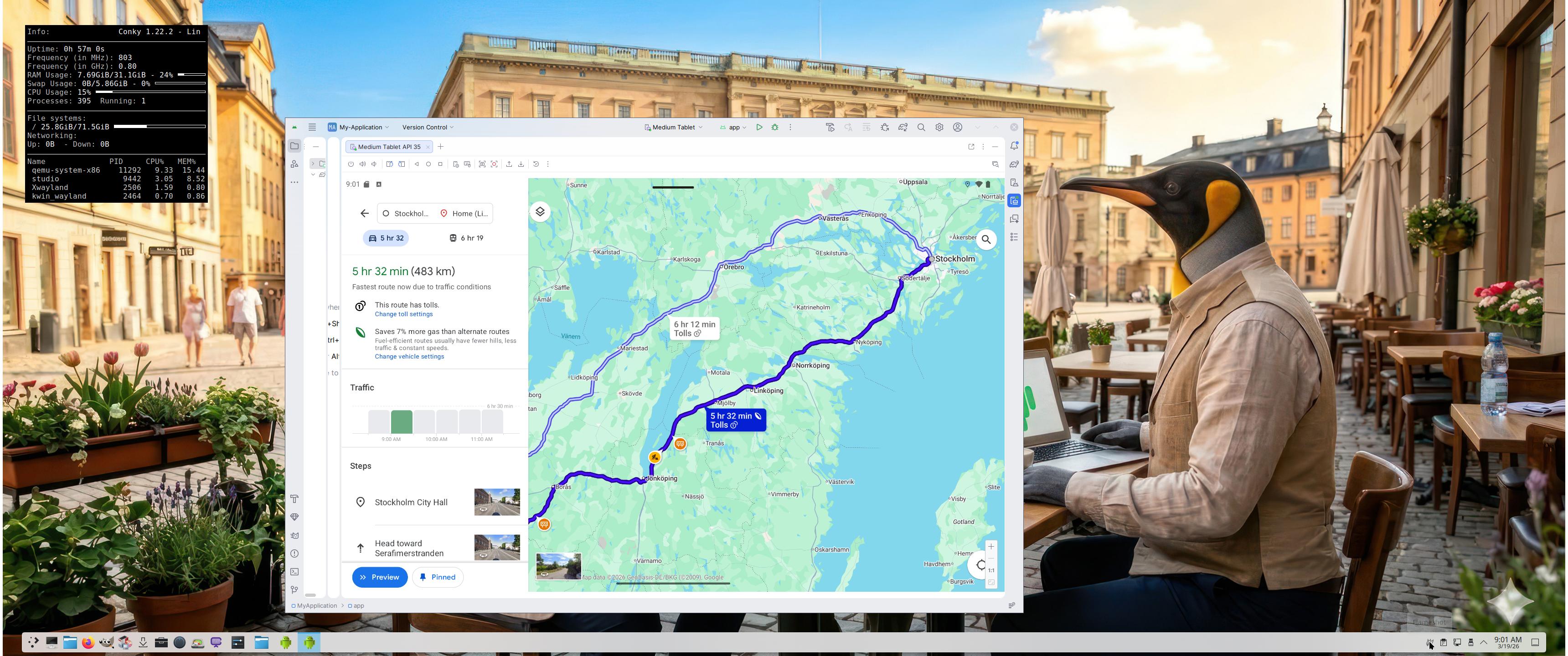
7. Google Maps is running – Screenshot
NOTE: The emulator performance in generally very good. I.e. you will enjoy excellent sound and video quality in all apps.

Exton|OS Build 260319 is based on Ubuntu 26.04 LTS 64 bit and Debian Sid. Exton|OS’s ISO file is a ISO-hybrid, which means that it can very easily be transferred (copied) to a USB pen drive. Read my INSTRUCTION. Ubuntu 26.04 LTS will be supported until June 2031…

Runs from RAM
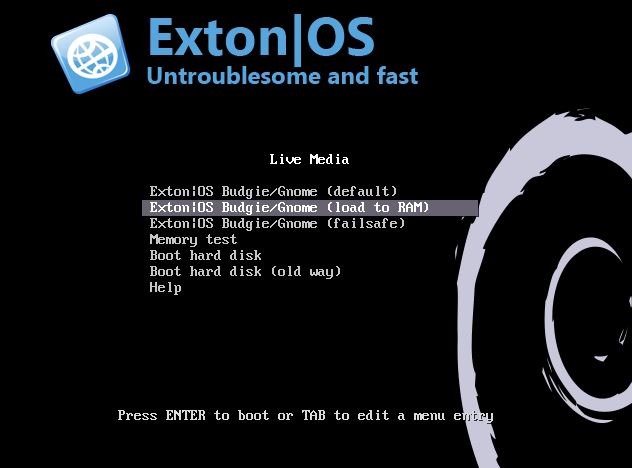
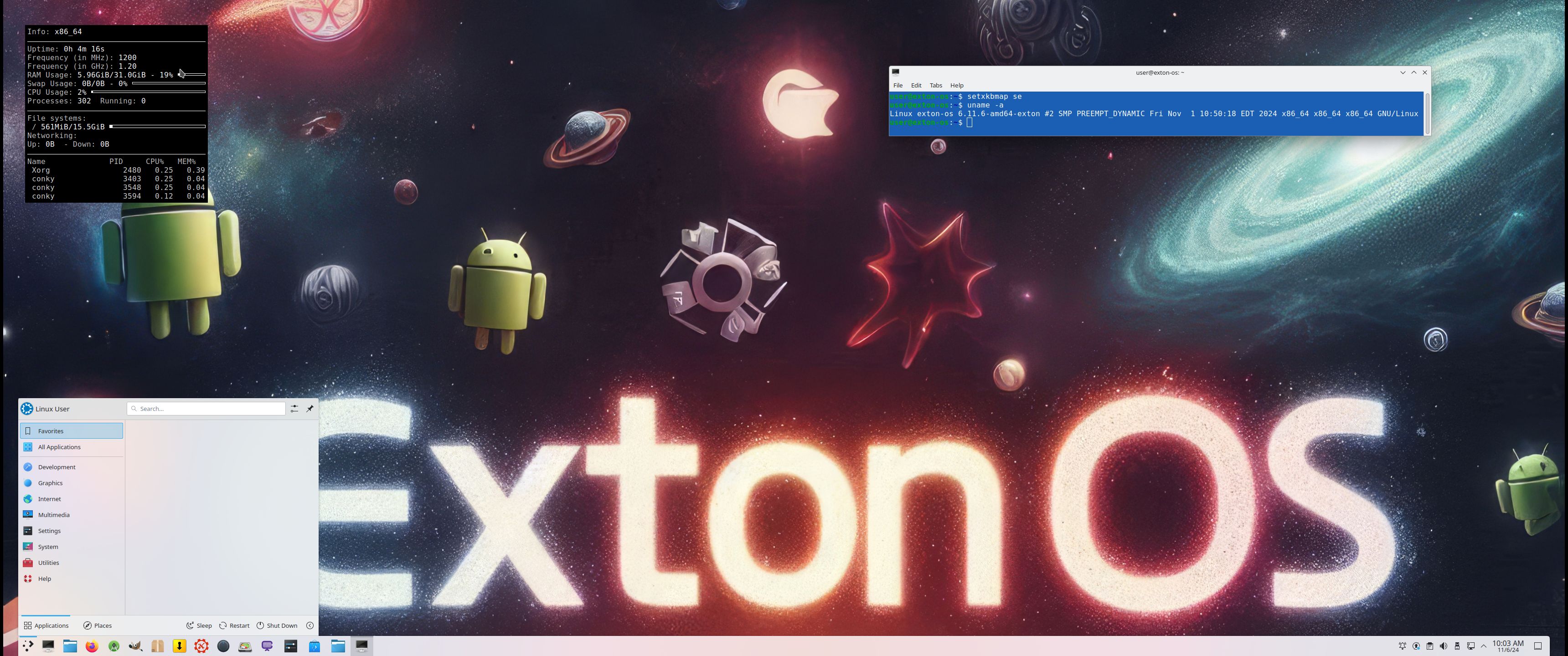
Another great thing is that Exton|OS can run from RAM. Use Boot alternative 2 (load to RAM). When the system has booted up you can remove the disc (DVD) or USB stick. You’ll need at least 8GB RAM to run Exton|OS that way. I.e. super fast! As you can see from this screenshot 6GB RAM is consumed when I have reached the KDE Plasma Desktop.

Locale
The system language is English.

Log in to the KDE Plasma Desktop
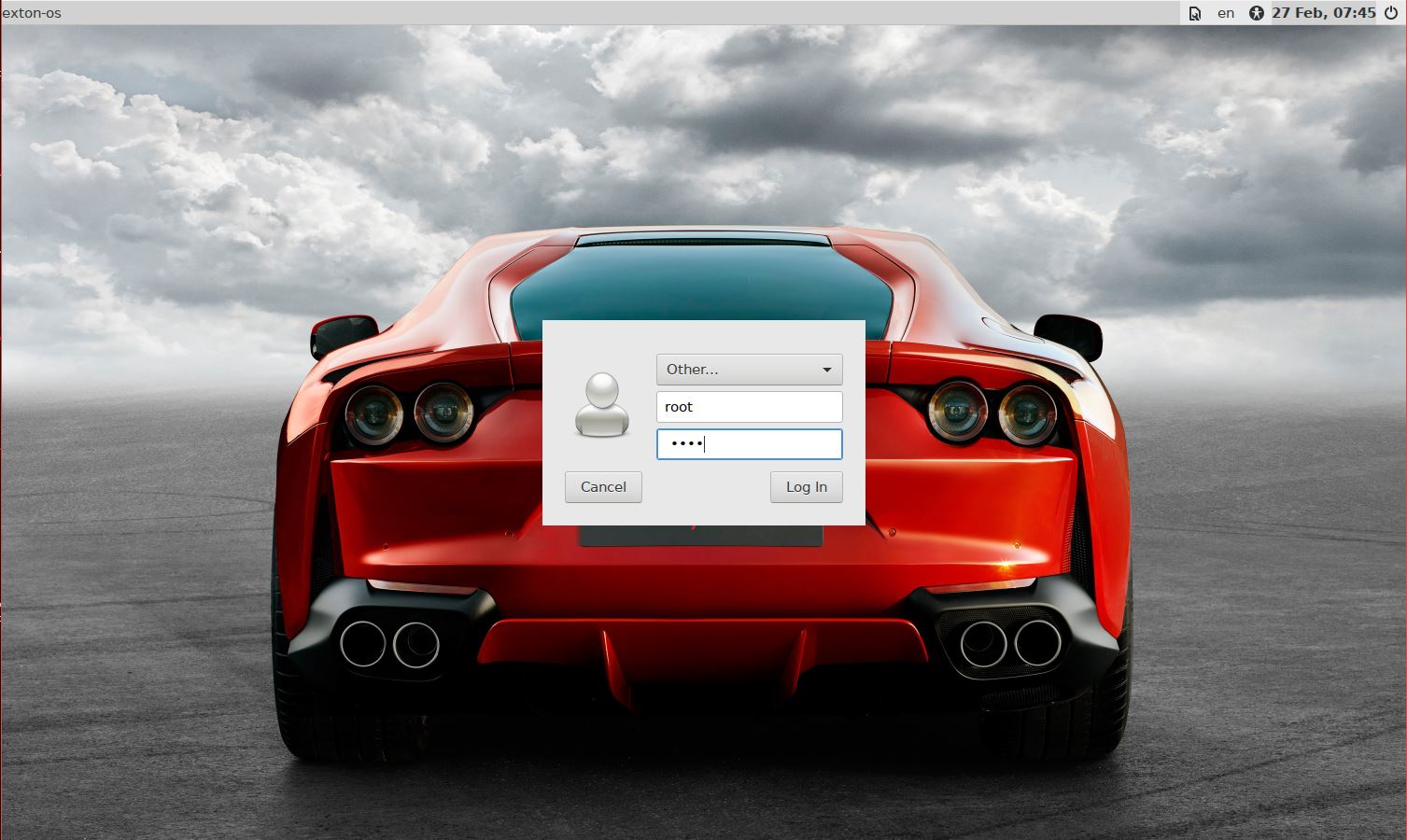
When you start up your computer from the DVD or the USB stick you will end up in X at LightDM‘s login screen or automatically logged in to KDE Plasma Desktop as the ordinary user user. The Password for root (superuser) is root. The password for the ordinary user user is live. During a hard drive install (using Refracta Installer) you can create your own ordinary user. You can also login via LightDM to KDE as root. If you want/need that.

Network connections
Use NetworkManager to configure your network connection. It works extremely well. If you use a wired connection you will be automatically connected to Internet. I you use a wireless connection just click on the Network icon in the menu below in right corner and choose your network.

Configure sound
If you don’t have sound just open up a terminal and run the command alsamixer. Or open PulseAudio (Pavucontrol).

Installation to hard drive
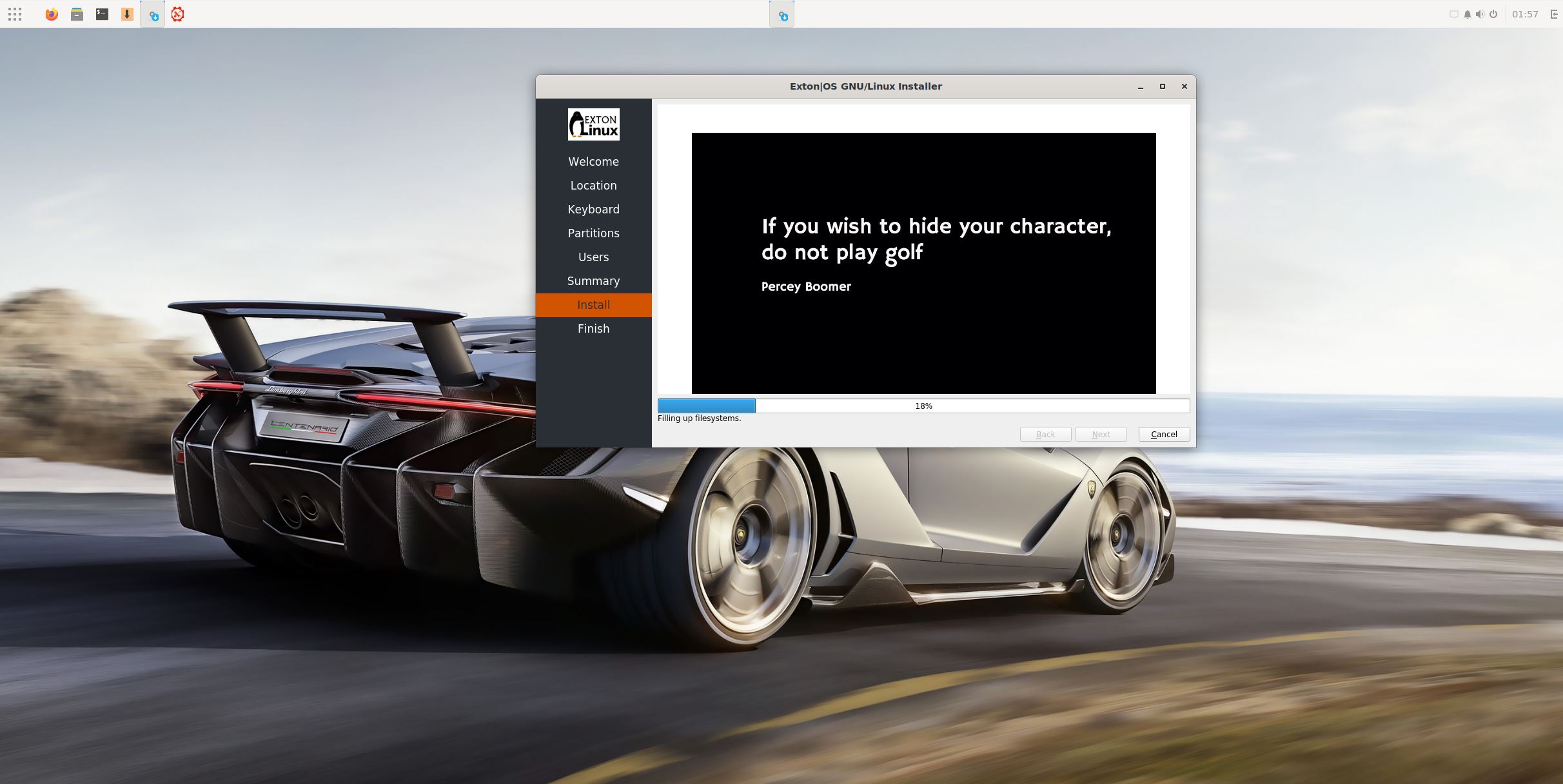
Note that you in advance (just in case) should create a partition of at least 40 GB for Exton|OS (if you want to make your own Ubuntu system) and a SWAP space double the size of your computer’s RAM. I.e. if you have RAM of 1024 MB or less. If you have RAM of 2 GB or more it’s enough with a SWAP space of 2 GB. The installation program Refracta Installer in Exton|OS is otherwise “intuitive”. Choose manual partitioning and select the partition you created in advance for installation. You’ll find the installation program under Applications >> System Tools >> Refracta Installer. The installation to hard drive is now so simple that a 10 year old child can do it. NOTE1: You should format your intended installation partition in advance. You can use GParted for that. If you already have installed Grub on your computer you can use Refracta Installer anyway. Just refrain from re-installing Grub when you install Exton|OS to hard drive. Read my instruction How To dual-boot, triple-boot or multi-boot Linux with Windows in a simple way and be happy. NOTE2: While installing Exton|OS you should set the username to user. If you don’t do that Android Studio won’t work anymore. NOTE3: In the end of the installation process you will probably get a couple of error messages. Just ignore them. Everything is alright.

Changing root’s password
If you install Exton|OS to hard drive you’ll get the chance to change root’s password. The root password is otherwise changed by running the command sudo passwd root.

Repositories and software management
Exton|OS is totally compatible with Ubuntu 26.04 and therefore uses Ubuntu’s repositories. After a hard drive install of Exton|OS you can go ahead and install any extra software you like and also upgrade the whole system. After running the command sudo apt update you should use Synaptic Package Manager.

VMware
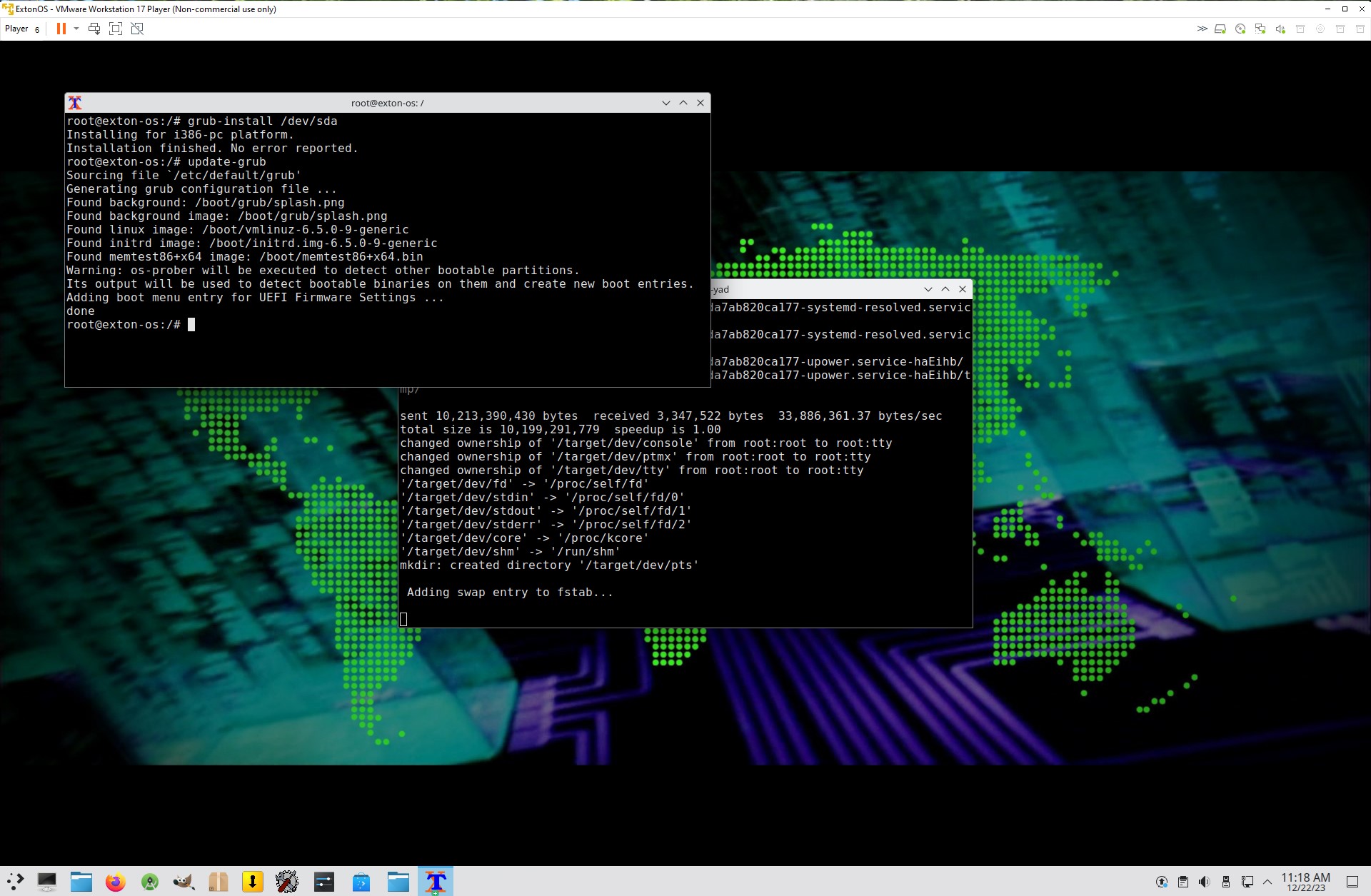
Exton|OS runs very well live in VMware. The very best way to run Exton|OS virtually though is to use Qemu in Linux. Exton|OS KDE/Android Build 260319 is for UEFI computers. You can nevertheless install Exton|OS to a virtual hard drive in VMware using Refracta Installer. NOTE: In the end of the installation process you’ll get the chance to install Grub. You’ll have to chroot into your install partition and run the following two commands sudo grub-install /dev/sda and sudo update-grub. The Refracta install program will give you the chroot opportunity – watch this screenshot…

Spotify
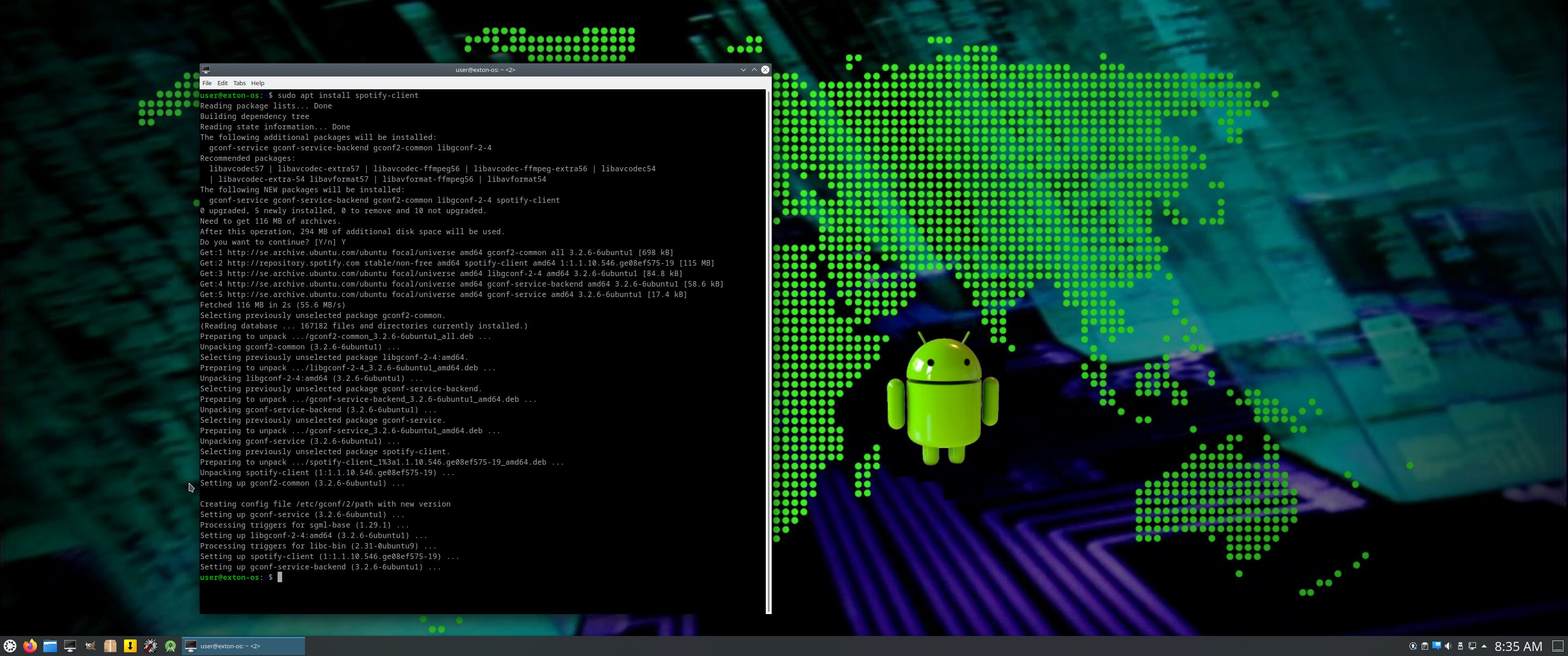
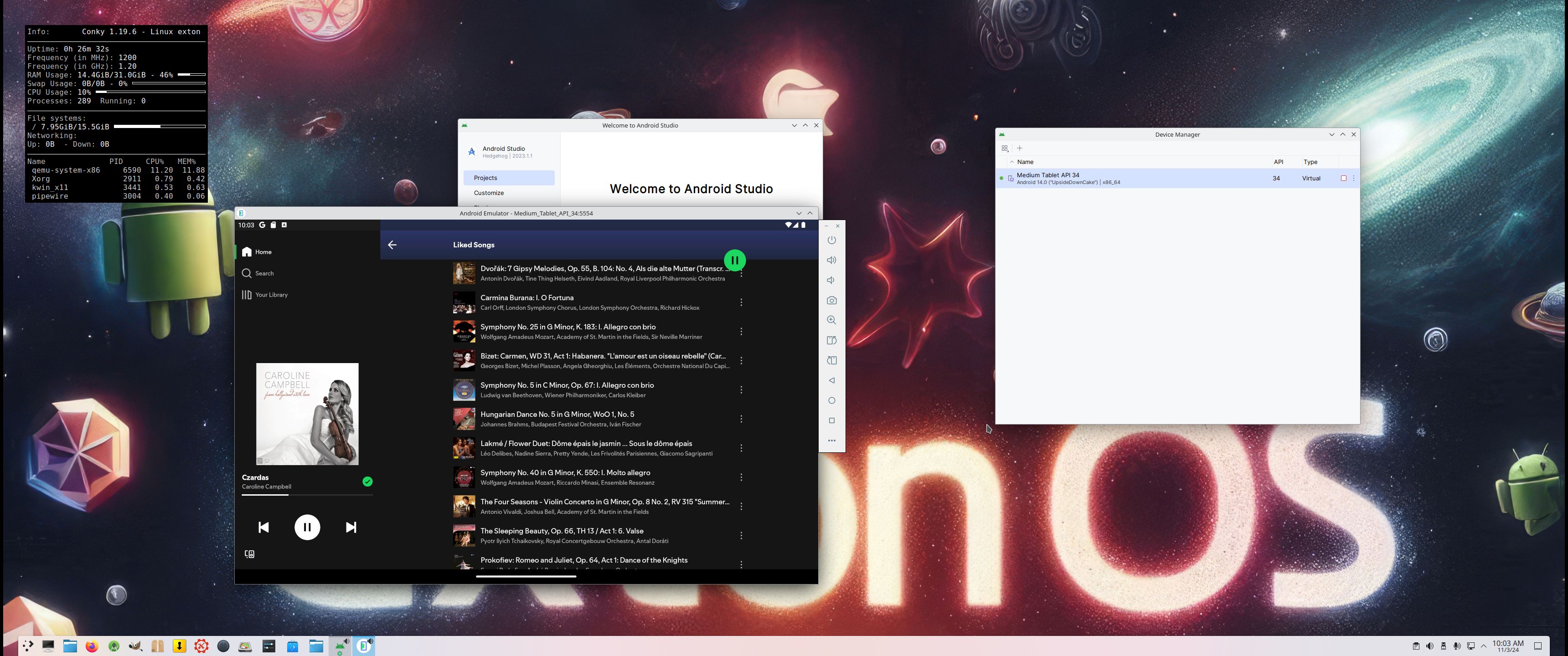
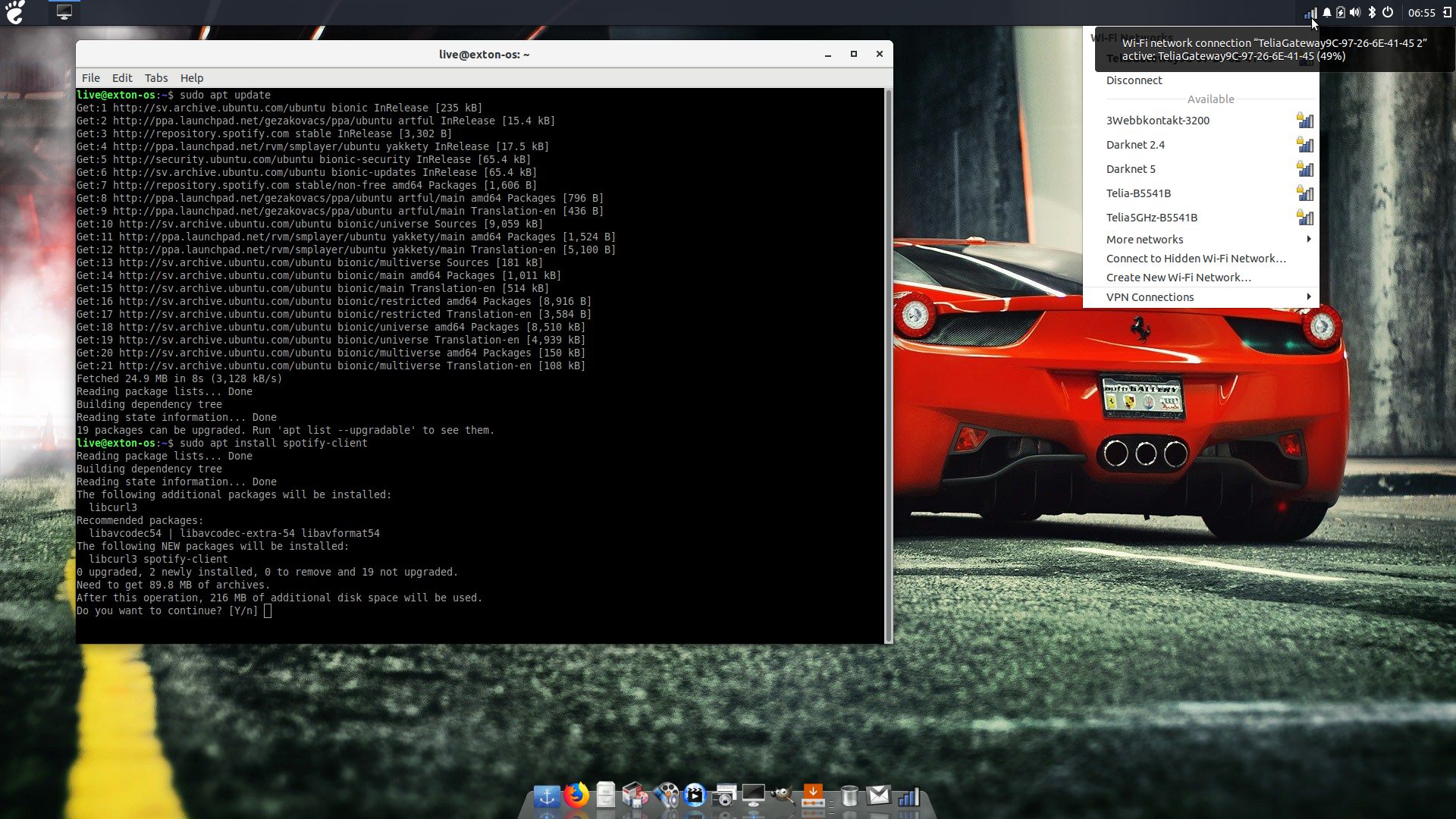
You may want to install Spotify in Exton|OS. Just go ahead. It’s very easy. Follow this instruction for Ubuntu. When running Exton|OS Build 260319 live or from hard drive you can just install Spotify with the command sudo apt update followed by sudo apt install spotify-client. Watch this screenshot. You can (of course) also install Spotify in an AVD (Android Virtual Device). Watch this screenshot.

USB installation with or without persistence
Use Balena Etcher, Rufus or Ventoy in Windows for “normal” USB installations without persistence. To achieve persistence you shall use Refracta Installer in the same way as during a normal hard drive installation. READ ABOUT how to do that.

SCREENSHOTS
Screenshot 1 – Exton|OS’s KDE Plasma Desktop with Android Studio running
Screenshot 2 – Running an AVD with Google Play Store included
Screenshot 3 – Running Clash of Clans in the Emulator – OLD
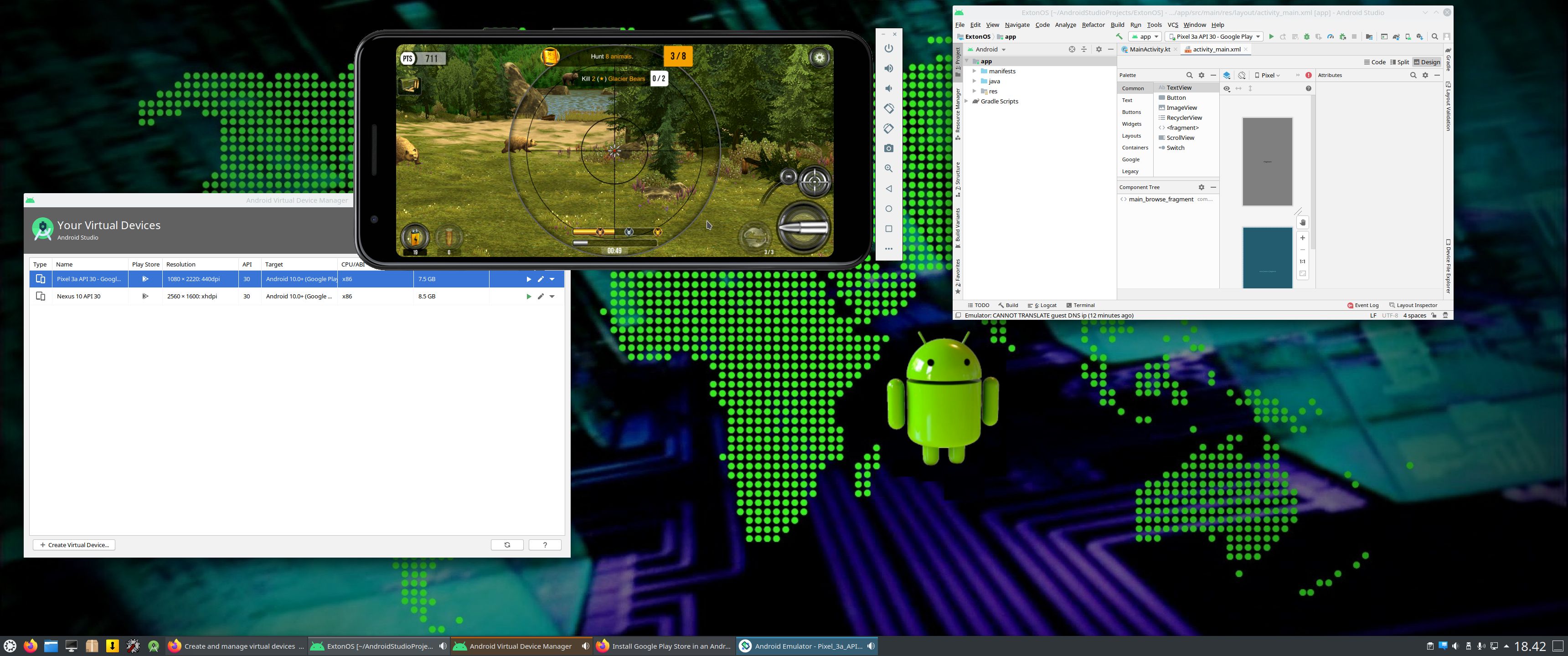
Screenshot 4 – Running a big Hunt game installed via Google Play Store – OLD
Screenshot 5 – Running Spotify in an AVD
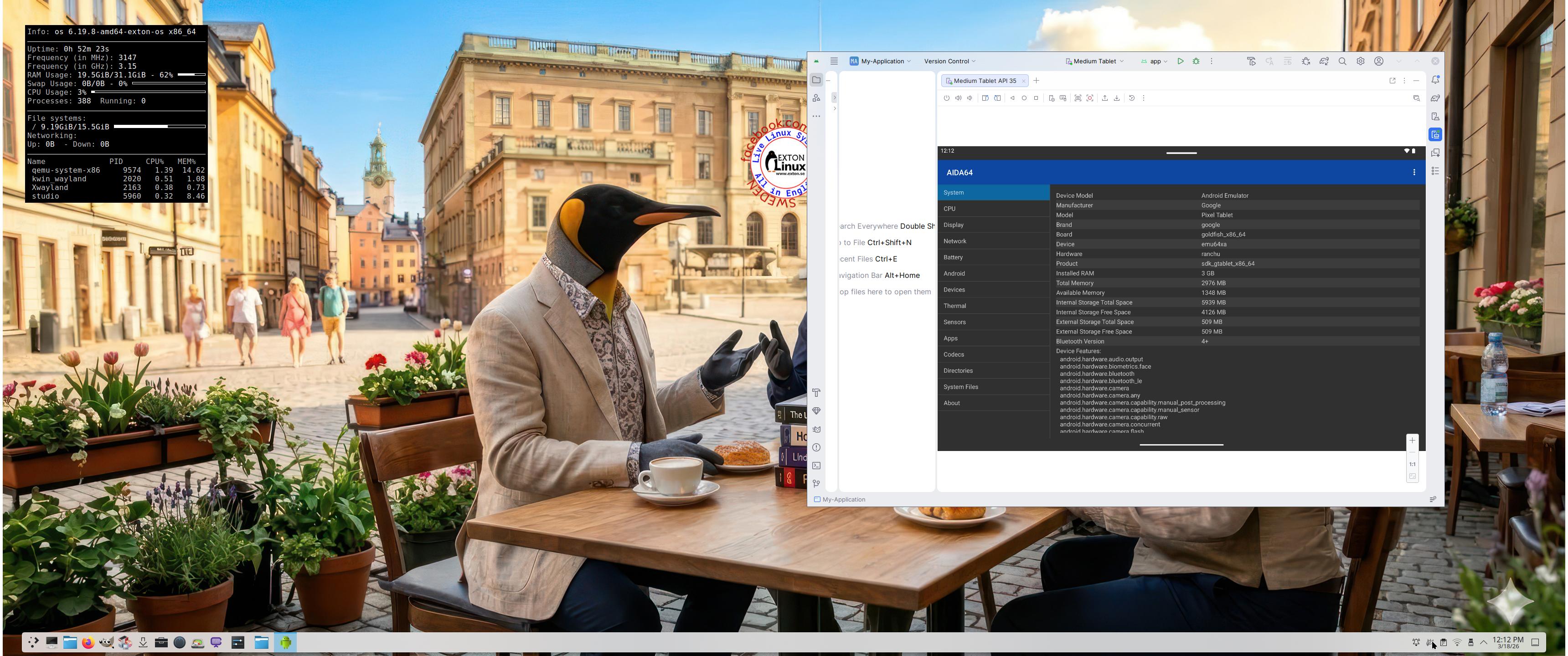
Screenshot 6 – Running AIDA64 in an AVD
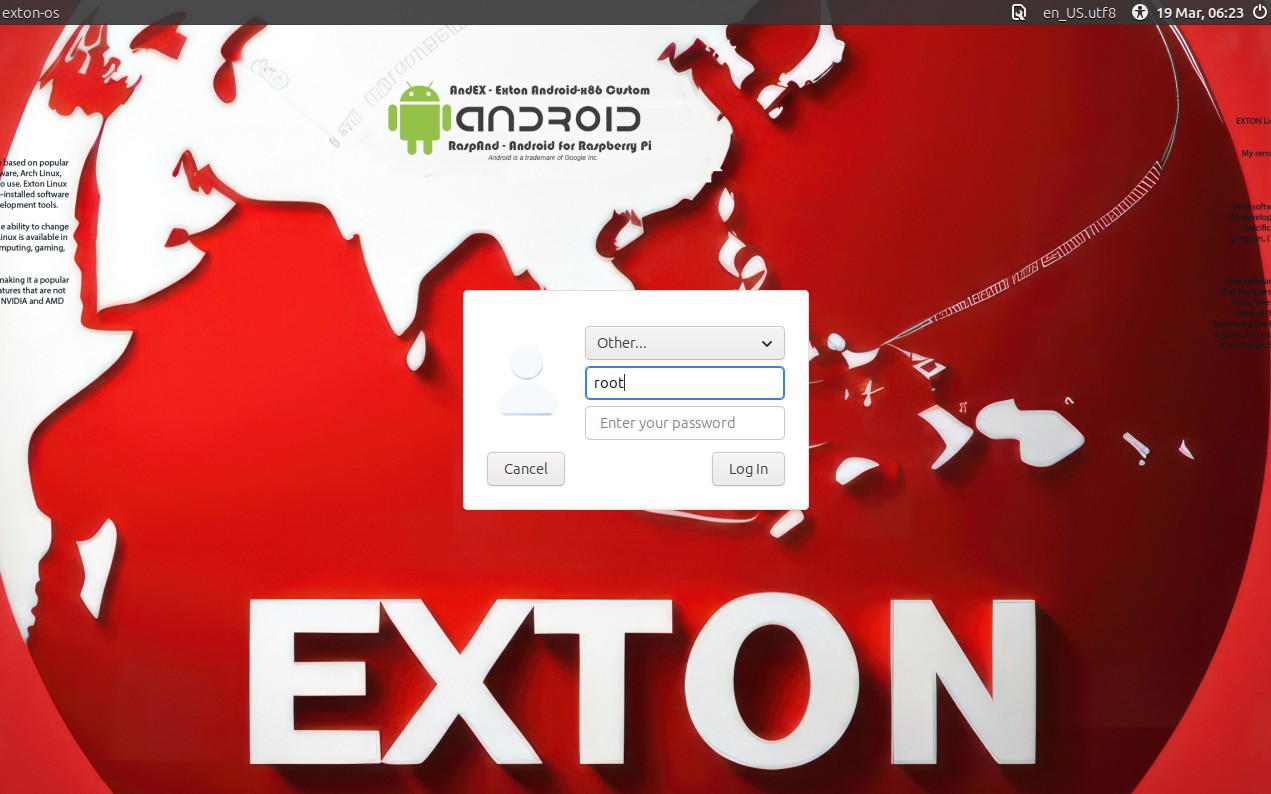
Screenshot 7 – LightDM login screen
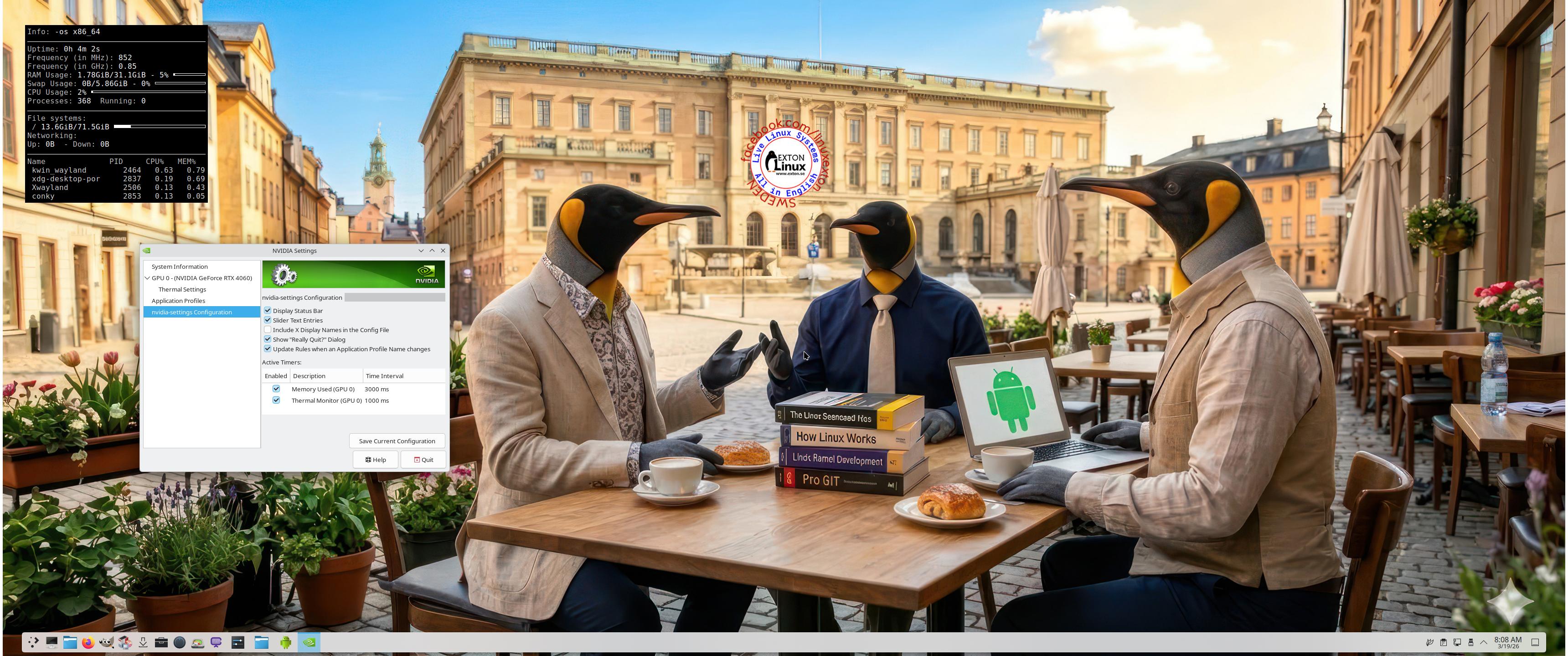
Screenshot 8 – Showing NVIDIA Settings
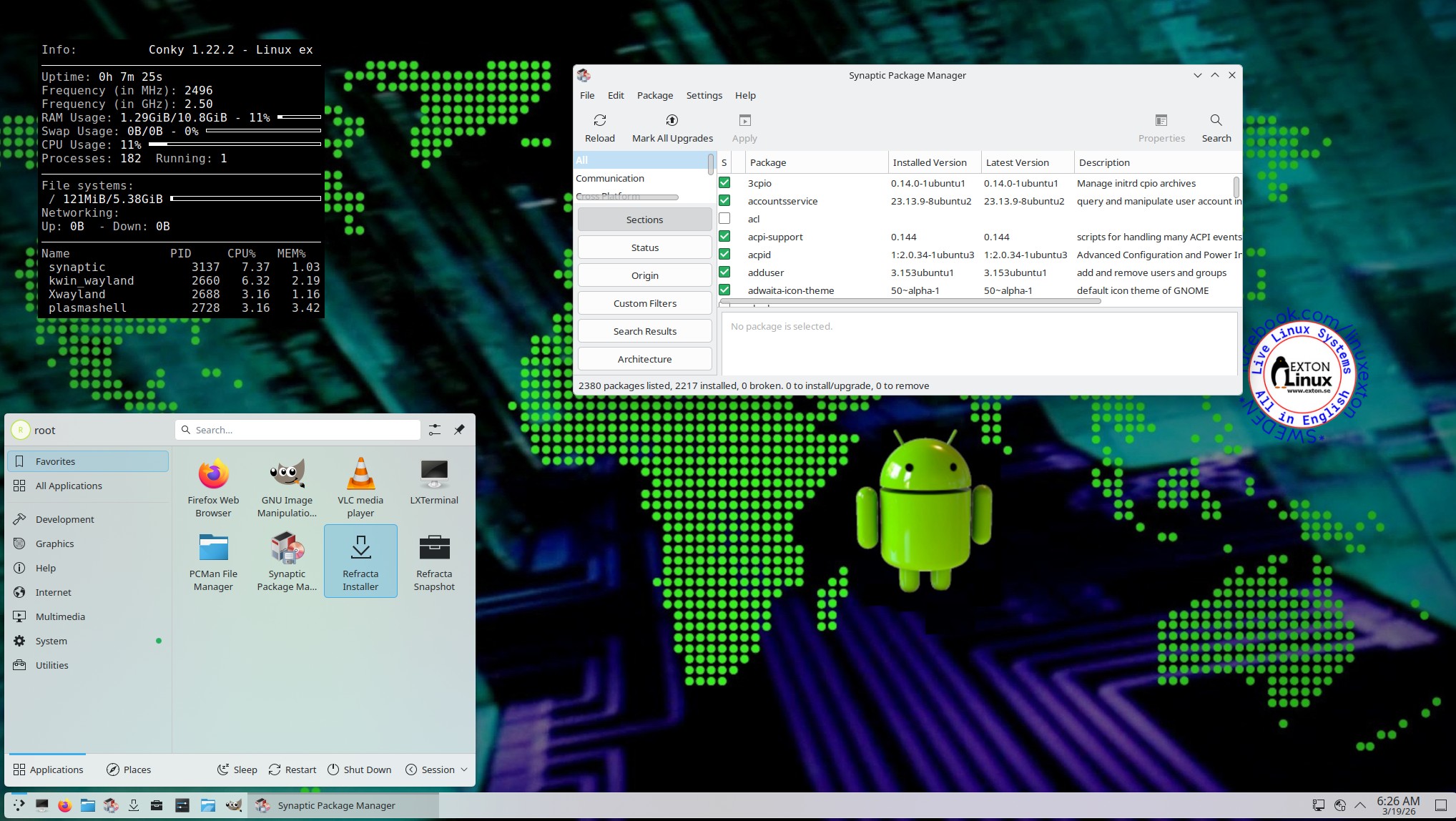
Screenshot 9 – The Desktop for root 260319

DOWNLOAD
Exton|OS can be downloaded from SourceForge.netFast, secure and free downloads from the largest Open Source applications and software directory.

A second download location is the Swedish Linux Society

md5sum for the ISO file of 4590 MB


Follow me on Facebook…

Read about my Android-x86 Systems – 11, 10, Pie, Oreo, Nougat, Marshmallow, Lollipop and KitKat at andex.exton.net – latest is AndEX 11 (with GAPPS), AndEX 10 (with GAPPS) and AndEX Pie 9.0 (also with GAPPS)!
and
about my Android 16, 15, 14, 13, 12, 11, 10, Pie, Oreo, Nougat, Marshmallow and Lollipop versions for Raspberry Pi 5, Pi 4 and  Pi 3/2 at raspex.exton.se – latest is RaspAnd 16 (with GAPPS), RaspAnd 15 (also with GAPPS), RaspAnd 14 (also with GAPPS), 13 and 12 (without GAPPS), RaspAnd 11 (with GAPPS) and RaspAnd Oreo 8.1 (also with GAPPS)!



Follow me on Facebook…

Exton|OS 64 bit – based on (upcoming) Ubuntu 20.04 LTS – with Budgie Desktop 10.5, Gnome 3.36, Refracta Snapshot, Calamares Installer and kernel 5.6.0-rc6-exton – Build 200319

NEWS 200319 ABOUT Exton|OS with Budgie Desktop 10.5, Gnome 3.36 and Refracta Snapshot
The Desktop Environment in this Exton|OS build is Budgie 10.5. Budgie is focused on simplicity an elegance. Designed with the modern user in mind. Gnome 3.36 is also installed. It was released 200311. Program content in build 200319: Refracta Snapshot, Calamares 3.2.20, Firefox, Gimp, SMPlayer, SMTube, and GParted. Also all necessary additions in order to install programs from source. Calamares is an installer framework. By design it is very customizable, in order to satisfy a wide variety of needs and use cases. Kernel 5.6.0-rc6-exton (corresponding Kernel.org‘s latest kernel 5.6-rc6) is used. Kernel 5.6-rc6 was released 200315. All packages have been updated to the latest available version as at March 19, 2020 Study the NEW PACKAGE list. Google Chrome has been removed since it’s now possible to use Netflix in Firefox. Using Refracta Snapshot you can change everything to your liking and create your own live installable Ubuntu system. I mean create your own installable Ubuntu 20.04 LTS Live DVD once you have installed Exton|OS to hard drive. Ubuntu 20.04 will be supported until April 25, 2025.

MOST IMPORTANT CHANGES IN BUILD 200319
1. This Exton|OS version is for efi computers. You can nevertheless use the Calamares Installer in VirtualBox/VMware and thus install Exton|OS in any language. You can even use Calamares for installation to a USB stick and that way get persistence. Please read my instruction before you perform such an installation. Calamares Installer replaces Ubiquity (Ubuntu’s installer). Calamares Installer is also very simple to use. No “expert knowledge” is needed.
2. A brand new kernel – 5.6-rc6 – is used. With Windows exFAT file system support.
3. The very nice icon theme Papirus is installed and used.
I haven’t changed the wallpapers since it’s hard to find nicer ones.

What’s new in kernel 5.6? – The most exciting kernel in years!
IMPORTANT ABOUT REFRACTA Snapshot
Refracta Snapshot is pre-installed in Exton|OS Build 200319. Use it to create your own live installable Ubuntu system. I mean create your own installable Ubuntu 20.04 LTS Live DVD once you have installed Exton|OS to hard drive. I mean change everything and then create a whole new Ubuntu live system. Start Refracta from Applications >> System Tools >> Refracta Snapshot. You don’t even have to install Exton|OS to hard drive before you can use Refracta Snapshot. If you have plenty of RAM you can create a new (your own!) Ubuntu system while running Exton|OS from DVD or a USB stick. Please note that the whole Refracta process (creating your new ISO) will only take 15 – 40 min! You’ll find the ISO in /home/snapshots. (Or change that in /etc/refractasnapshot.conf). The whole thing is very simple.

About Calamares Installer
Calamares is an installer framework. By design it is very customizable, in order to satisfy a wide variety of needs and use cases. Calamares aims to be easy, usable, beautiful, pragmatic, inclusive and distribution-agnostic. Calamares includes an advanced partitioning feature, with support for both manual and automated partitioning operations. It is the first installer with an automated “Replace Partition” option, which makes it easy to reuse a partition over and over for distribution testing. See
a slideshow below showing the whole Calamares install process in Exton|OS.


Using Calamares you can choose language when the installation starts. When it’s ready everything will be in your chosen language!

Exton|OS Build 200319 is based on (upcoming) Ubuntu 20.04 LTS 64 bit and Debian. Exton|OS’s ISO file is a ISO-hybrid, which means that it can very easily be transferred (copied) to a USB pen drive. Read my INSTRUCTION. Ubuntu 20.04 will be supported until April 2025.

Runs from RAM
Another great thing is that Exton|OS can run from RAM. Use Boot alternative 2 (load to RAM). When the system has booted up you can remove the disc (DVD) or USB stick. You’ll need at least 2 GB RAM to run Exton|OS that way. I.e. super fast!

Locale
The system language is English.

Log in to Budgie Desktop or Gnome
When you start up your computer from the DVD or the USB stick you will end up in X at LightDM‘s login screen or automatically logged in to Budgie Desktop as the ordinary user live. Log in as root (superuser) with password root or as the ordinary user live with password live. During a hard drive install (using Calamares Installer) you can create your own ordinary user. As an alternative to Budgie you can choose to log in to Gnome 3.36. Read about the 10 best features in Gnome 3.36 (which was released 200311).

Network connections
Use NetworkManager to configure your network connection. It works extremely well. If you use a wired connection you will be automatically connected to Internet. I you use a wireless connection just click on the Network icon in the upper right corner and choose your network.

Configure sound
If you don’t have sound just open up a terminal and run the command alsamixer.

Installation to hard drive
Note that you in advance (just in case) should create a partition of at least 20 GB for Exton|OS (if you want to make your own Ubuntu system) and a SWAP space double the size of your computer’s RAM. I.e. if you have RAM of 1024 MB or less. If you have RAM of 2 GB or more it’s enough with a SWAP space of 2 GB. The installation program Calamares Installer in Exton|OS is otherwise “intuitive”. Choose manual partitioning and select the partition you created in advance for installation. You’ll find the installation program under Applications >> System Tools >>Calamares. The installation to hard drive is now so simple that a 10 year old child can do it. NOTE: You should format your intended installation partition in advance. You can use GParted for that. If you already have installed Grub on your computer you can use Calamares anyway. Just refrain from re-installing Grub when you install Exton|OS to hard drive. Read my instruction How To dual boot, triple boot or multiboot Linux with Windows in a simple way and be happy.

Changing root’s password
If you install Exton|OS to hard drive the password for root (root) you’ll get the chance to change root’s password. The root password is otherwise changed by running the command sudo passwd root. You can log in to Budgie and/or Gnome as root if you want to.

Repositories and software management
Exton|OS is totally compatible with Ubuntu 20.04 and therefore uses Ubuntu’s repositories. After a hard drive install of Exton|OS you can go ahead and install any extra software you like and also upgrade the whole system. After running the command sudo apt-get update you should use Synaptic Package Manager.

VirtualBox and VMware
Exton|OS runs very well live in VirtualBox and VMware. Exton|OS Budgie/Gnome Build 200319 is for UEFI computers. You can nevertheless install Exton|OS to a virtual hard drive in VirtualBox and VMware using Calamares. NOTE: When running Exton|OS in VirtualBox you may have to use the boot alternative nomodeset (failsafe).

Spotify
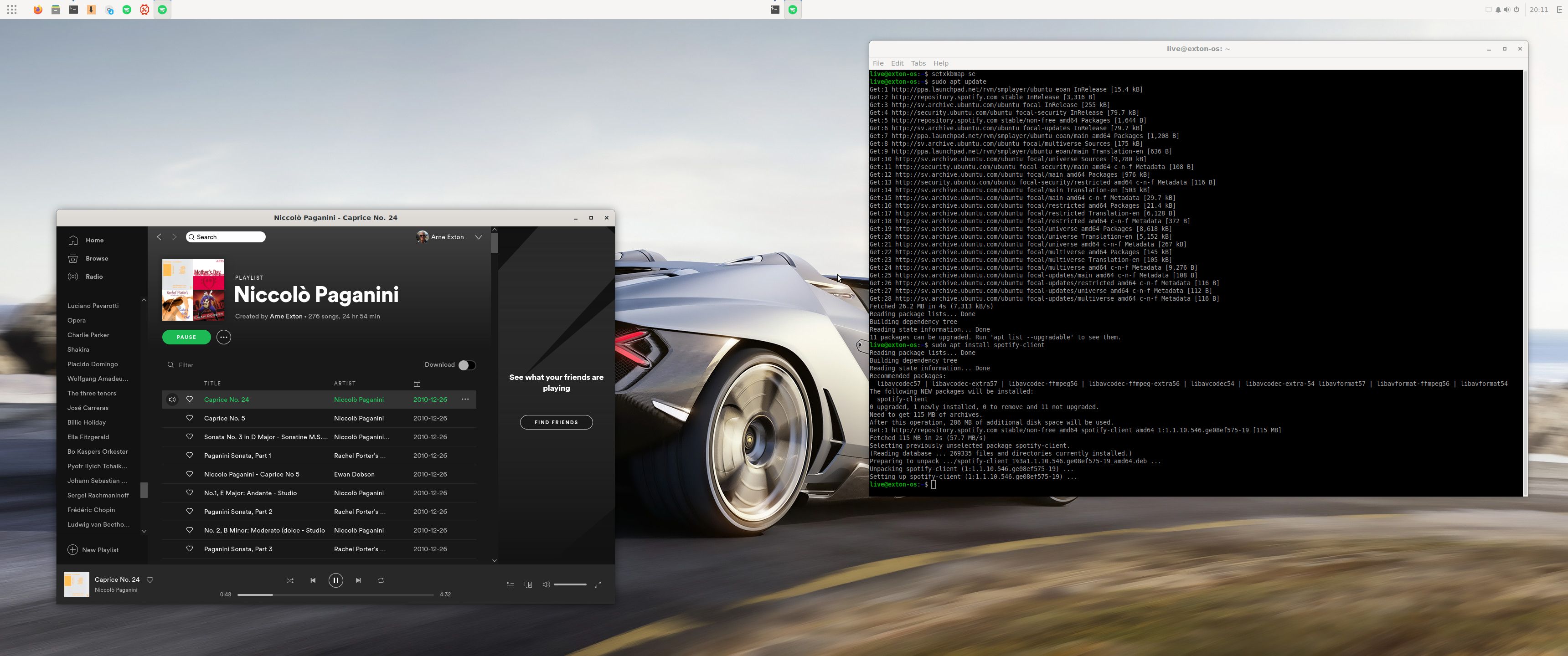
You may want to install Spotify in Exton|OS. Just go ahead. It’s very easy. Follow this instruction for Ubuntu. When running Exton|OS Build 200319 live or from hard drive you can just install Spotify with the command sudo apt update followed by sudo apt install spotify-client. Watch this screenshot.

USB installation without persistence
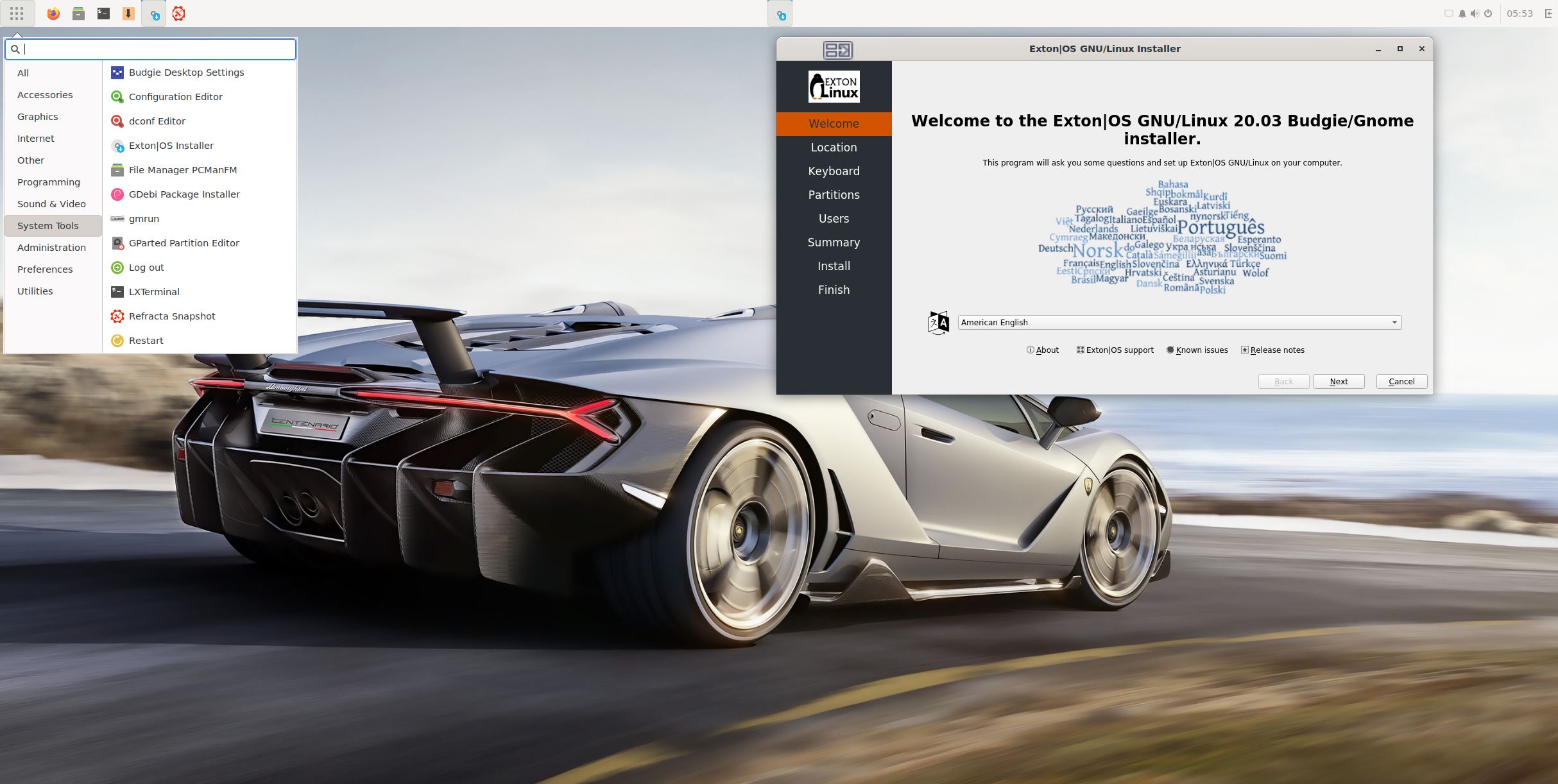
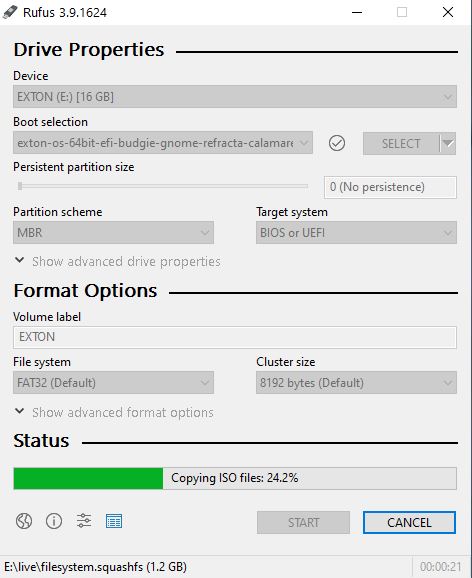
Use Rufus 3.9. Watch the screenshot below.

USB installation with persistence
To enable persistence you can install Exton|OS to a USB stick in the same way as a hard drive installation. I.e. using Calamares Installer. Read my INSTRUCTION. For persistence read under C).

SCREENSHOTS
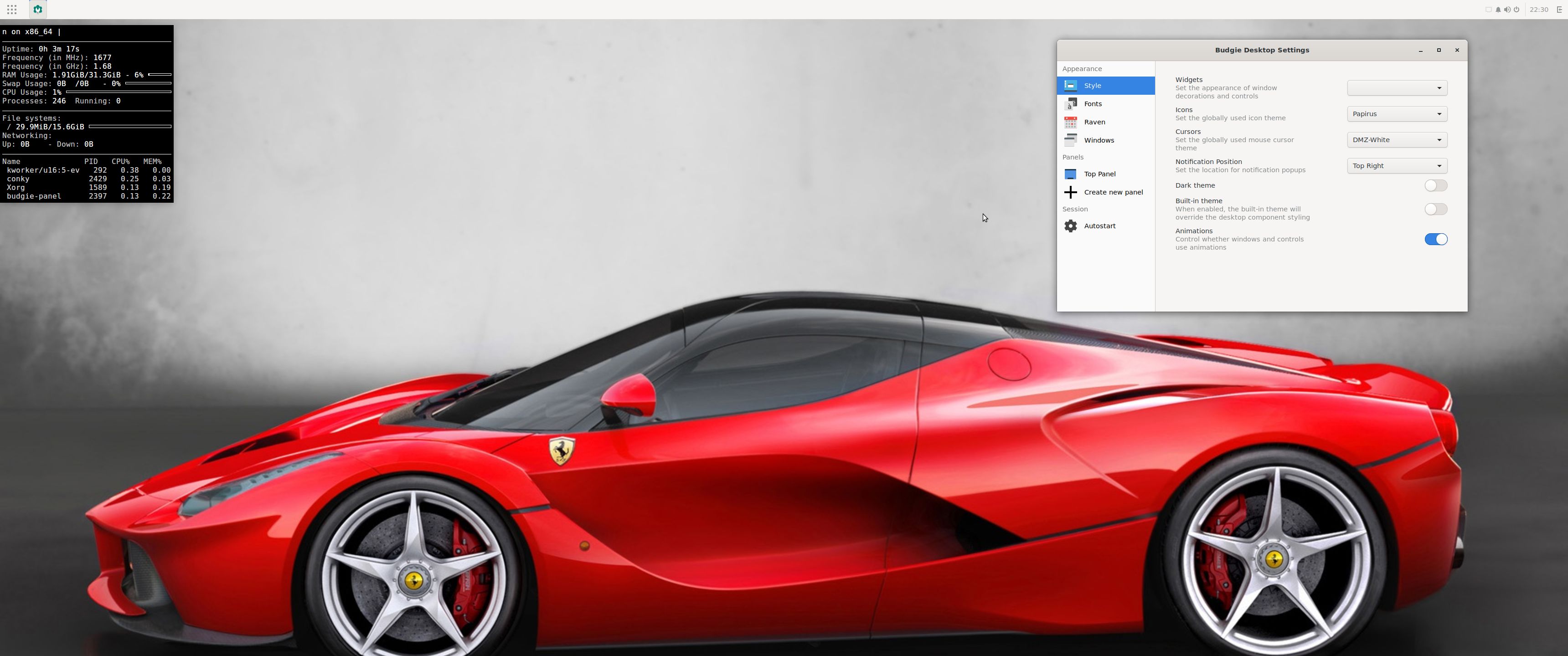
Screenshot 1 – Exton|OS’s Budgie root Desktop
Screenshot 2 – Exton|OS’s Budgie live Desktop
Screenshot 3 – Exton|OS Gnome live Desktop
Screenshot 4 – Exton|OS’s Budgie Desktop installing Spotify
Screenshot 5 – Exton|OS’s Budgie Desktop running Calamares
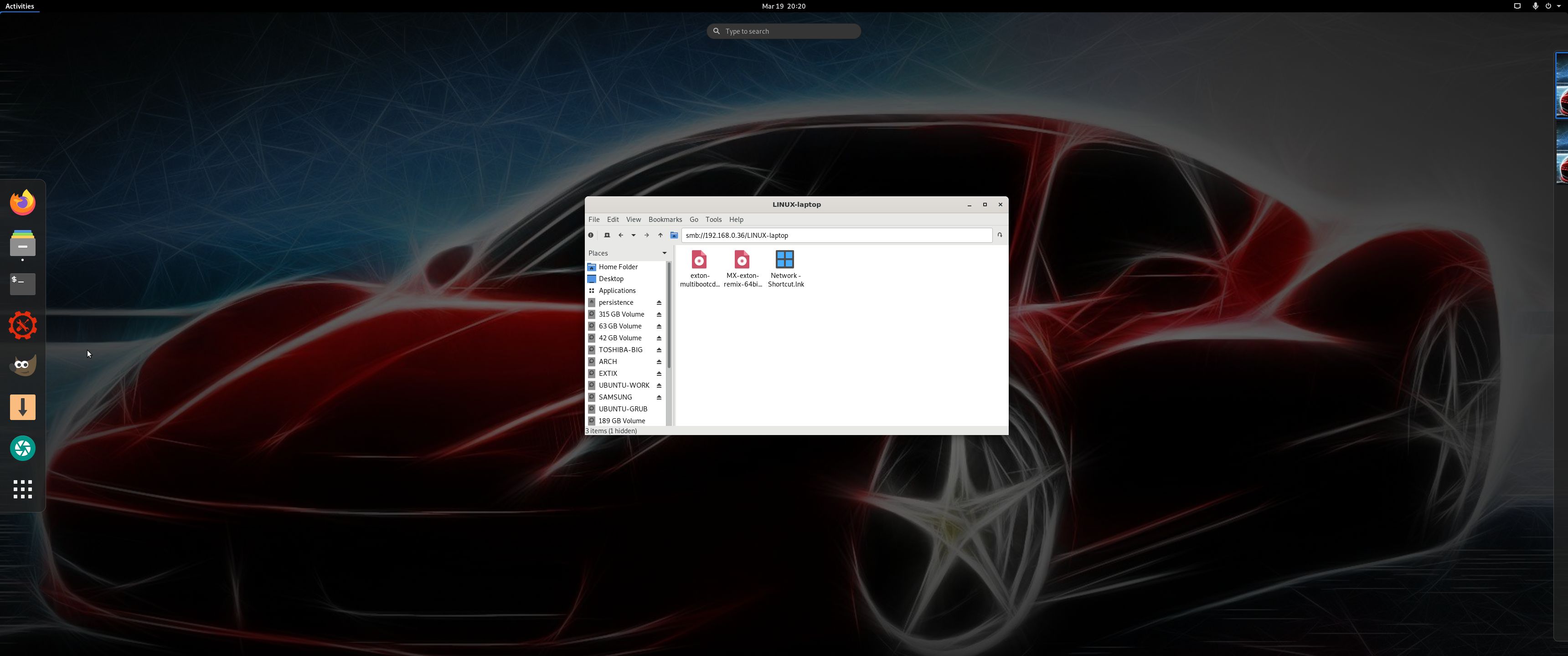
Screenshot 6 – connection to a Windows computer with Samba
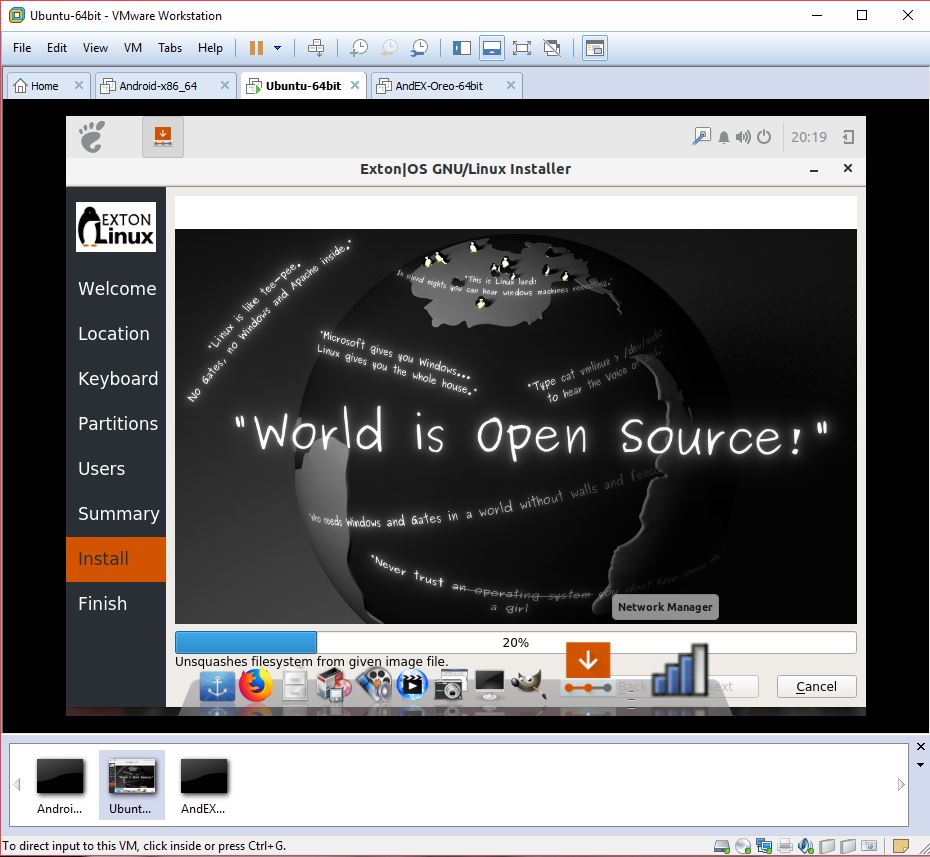
Screenshot 7 – Exton|OS running in VMware
Screenshot 8 – showing how to configure a wireless Network

DOWNLOAD
NEWS 231223

This Exton|OS version has been removed from the servers. It is too old.

Exton|OS Light Build 170918 :: Based on upcoming Ubuntu 17.10 with Refracta tools and kernel 4.13.0-11-exton (4.13.1)

exton-os-logo-worldNEWS 170918 about Exton|OS Light Live DVD – now with Refracta tools!
I’ve made a new extra version of Exton|OS based on Ubuntu 17.10 (alias Artful Aardvark) 64 bit with only a minimum of packages pre-installed. Among them a terminal emulator (LXTerminal), a Web Browser (Google Chrome – so you can run Netflix), SMPlayer, SMTube (YouTube browser which allows to browse, search and play YouTube videos), PCManFM (file manager), Gimp, NetworkManager, GParted (Partition Editor), Samba (so you can reach your Windows computers), Audacious (a small and fast audio player which supports lots of formats) and Synaptic (Package Manager). I give you the pleasure of installing all extra packages you need after a hard disk installation of Exton|OS Light. Use Synaptic for that. You can of course also install new packages while running the system live (from DVD/USB stick), but nothing will be saved after a reboot. Unless you have followed my USB Install Instruction (under B) or used UNetbootin) and used Boot alternative 2 – Persistent when you have used UNetbootin. If you have plenty of RAM you can even install big programs (such as LibreOffice) while running the system live even from DVD. Exton|OS Light’s Window manager Openbox guarantees lightness and elegance.

Replacement
This version of Exton|OS Light from 170918 replaces version 161021 of Exton|OS Light. Exton|OS Light is now based on Debian Stretch/Sid and Ubuntu 17.10 (to be released in October, 2017).

About
Exton|OS Light Live CD is based on Ubuntu 17.10 Artful Aardvark 64 bit and Debian Stretch/Sid. Exton|OS Light’s ISO file (of 1240 MB) is a ISO-hybrid, which means that it can very easily be transferred (copied) to an USB pen drive. You can then even run Exton|OS from the USB stick and save all your system changes on the stick. I.e. you will enjoy persistence! Read my USB INSTRUCTION under B).

Packages
All installed packages in Exton|OS Light have been updated to the latest available version as at September 18, 2017. Study the full package list.

Used KERNEL
My special kernel 4.13.0-11-exton, equivalent to Kernel.org’s kernel 4.13.1.

Log in to Openbox
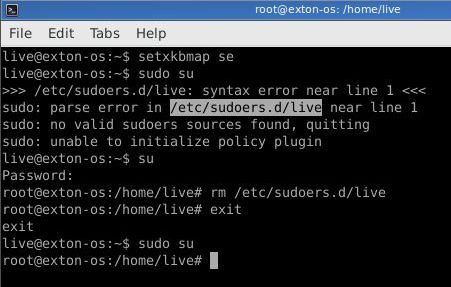
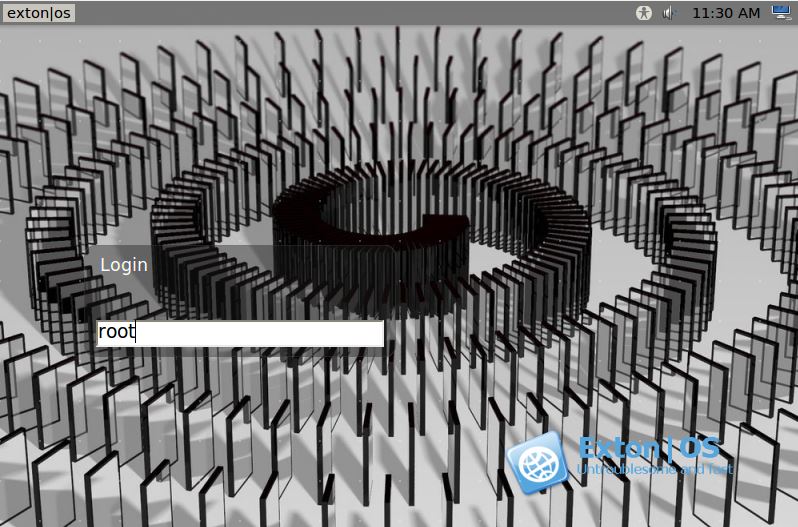
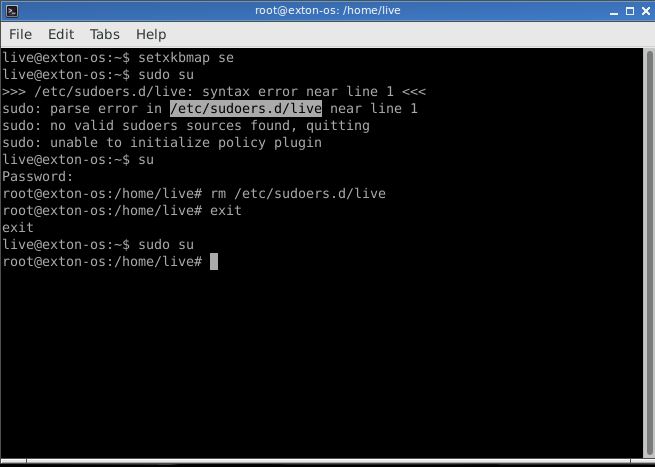
When the system has booted up you will end up in X (Openbox) as the ordinary user live. You can log out from Openbox and back again as root (“Other”) if you want. The password for root is root. When logged in as live you can become root with sudo su. The password for live when running the system live (i.e. from CD or USB) is live. In order to use the command sudo without errors (and also to be able to start Refracta Installer) you’ll have to run the commands this screenshot shows.

How to change wallpaper

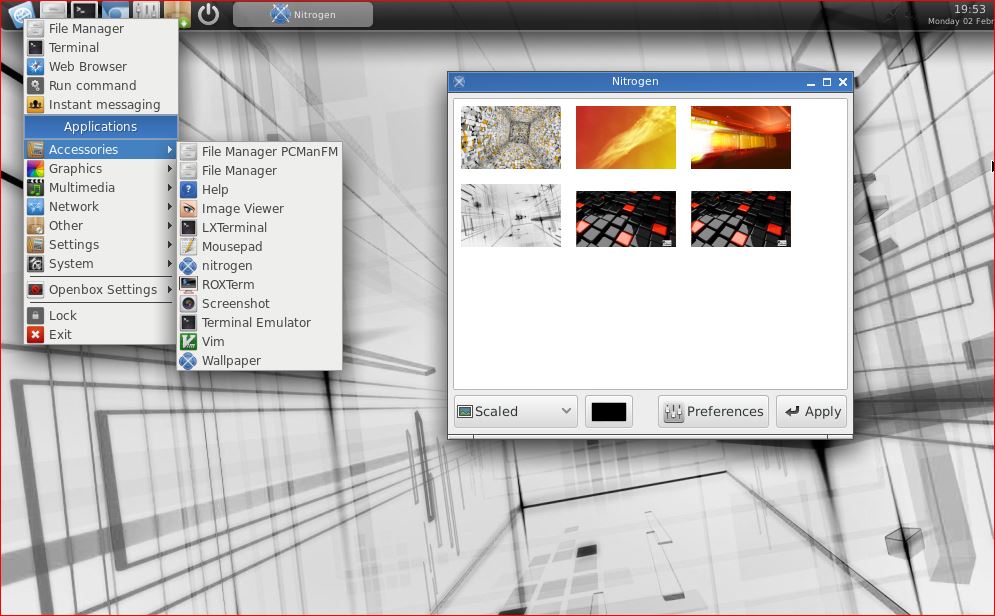
Exton|OS Light and Openbox uses Nitrogen Wallpaper Manager to change desktop background. Open Nitrogen and you will see all wallpapers in /usr/share/backgrounds. Choose the one you want.

Repositories and software management
Exton|OS Light is totally compatible with Ubuntu 17.10 and therefore uses Ubuntu’s repositories. After a hard drive install of Exton|OS you can go ahead an install any extra software you like and also upgrade the whole system. After running the command apt-get update you should use Synaptic Package Manager.

USB installation
Read my INSTRUCTION. For persistence please read under B) or use UNetbootin.

Hard drive installation
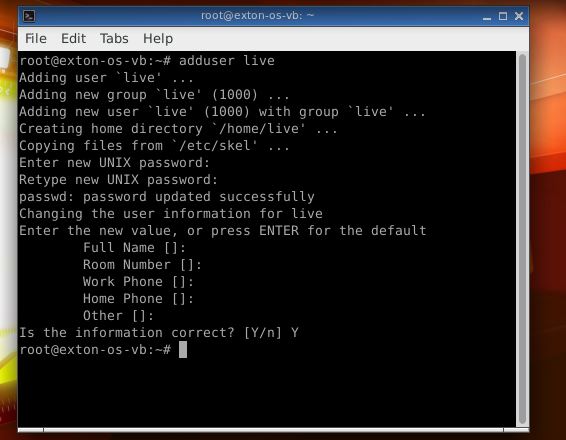
I have replaced Ubuntu’s installation program Ubiquity with Exton|OS Installer, which is a clone of Debian Live Installer. The installation to hard drive is now so simple that a 10 year old child can do it. Watch a SLIDESHOW of the hard drive installation process.Just start the installation program (Exton|OS Installer) from the menu under System and follow the instructions. Note1: When asked create a new normal user. Unfortunately this new user won’t exist when the installation is ready. You’ll have to log in to Openbox as root with the password you gave your created user. Then open up a terminal and run this command: adduser live. (I.e. if you want to run Exton|OS Light as a normal user). Note2: Be sure to name your own created user live (username). If you give your ordinary user any other name the menu in Openbox after a hard drive installation won’t work. It is sort of a “bug”. Sorry about that. Note3: The password you create for your user during the hard drive installation will be root’s new password. Note4: In Exton|OS Light Build 170918 I’ve also installed Refracta Installer. Use it as an alternative to Exton|OS Installer.

Runs from RAM

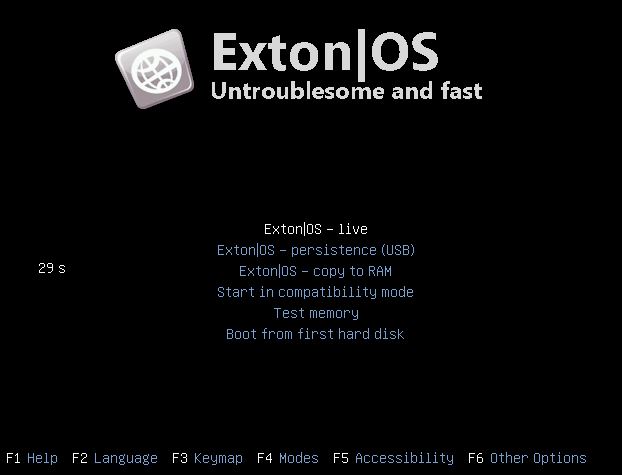
Another great thing is that Exton|OS Light can run from RAM. Use Boot alternative 3 (Copy to RAM). When the system has booted up you can remove the disc (DVD) or USB stick. You’ll need at least 2 GB RAM to run Exton|OS Light that way. Since the system is relatively small (ISO file of 1240 MB) Exton|OS Light will run really fast from RAM. Super fast I would say!

IMPORTANT ABOUT REFRACTA TOOLS

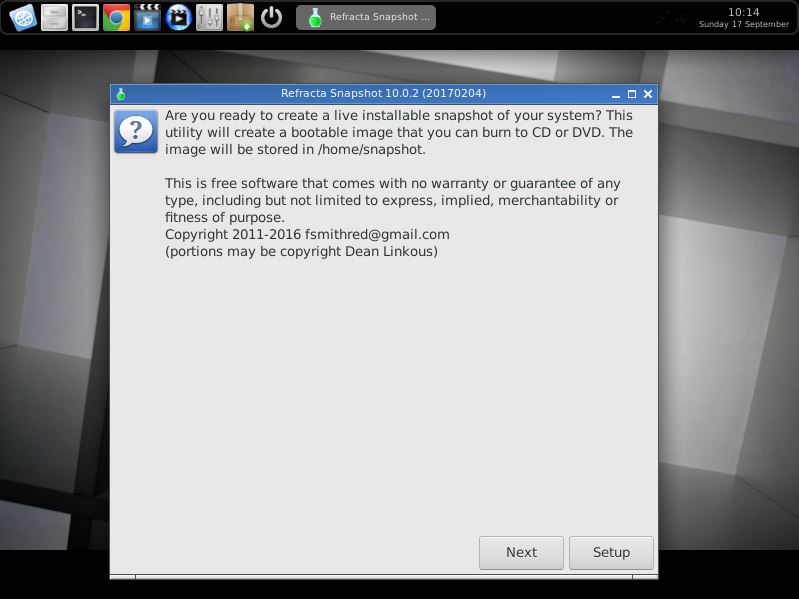
Refracta tools are pre-installed in Exton|OS Light Build 170918 (as well as in Exton|OS Mate Build 170609). Use them to create your own live installable Ubuntu system. I mean create your own installable Ubuntu 17.10 Live DVD once you have installed Exton|OS to hard drive. I mean change everything and then create a whole new Ubuntu live system. Start Refracta from Applications >> System Tools >> Refracta Snapshot. You don’t even have to install Exton|OS Light to hard drive before you can use the Refracta tools. If you have plenty of RAM you can create a new (your own!) Ubuntu system while running Exton|OS from DVD or a USB stick. Please note that the whole Refracta process (creating your new ISO) will only take 10 – 15 min! You’ll find the ISO in /home/snapshots. (Or change that in /etc/refractasnapshot.conf). The whole thing is very simple. NOTE: You can (of course) use the Refracta tools in VirtualBox and/or VMware. Refracta Installer replaces Ubiquity (Ubuntu’s installer). Refracta Installer is also very simple to use. No “expert knowledge” is needed. To start it you’ll have to run the commands this screenshot shows.

SCREENSHOTS
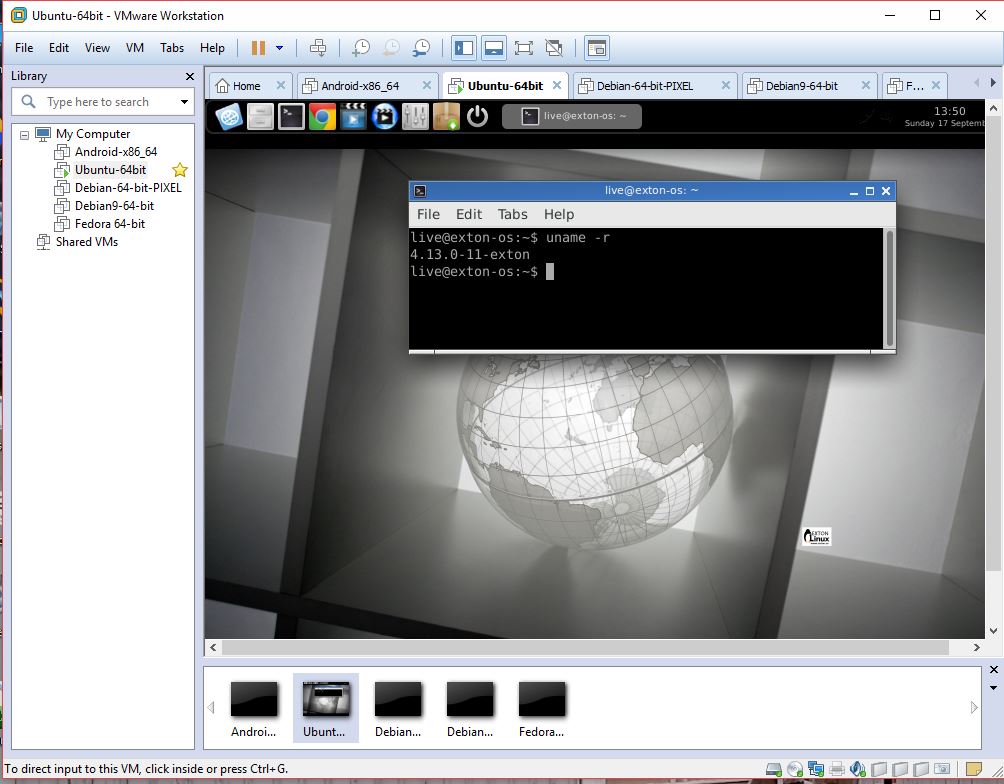
1. Screenshot of Exton|OS Light running in VMware
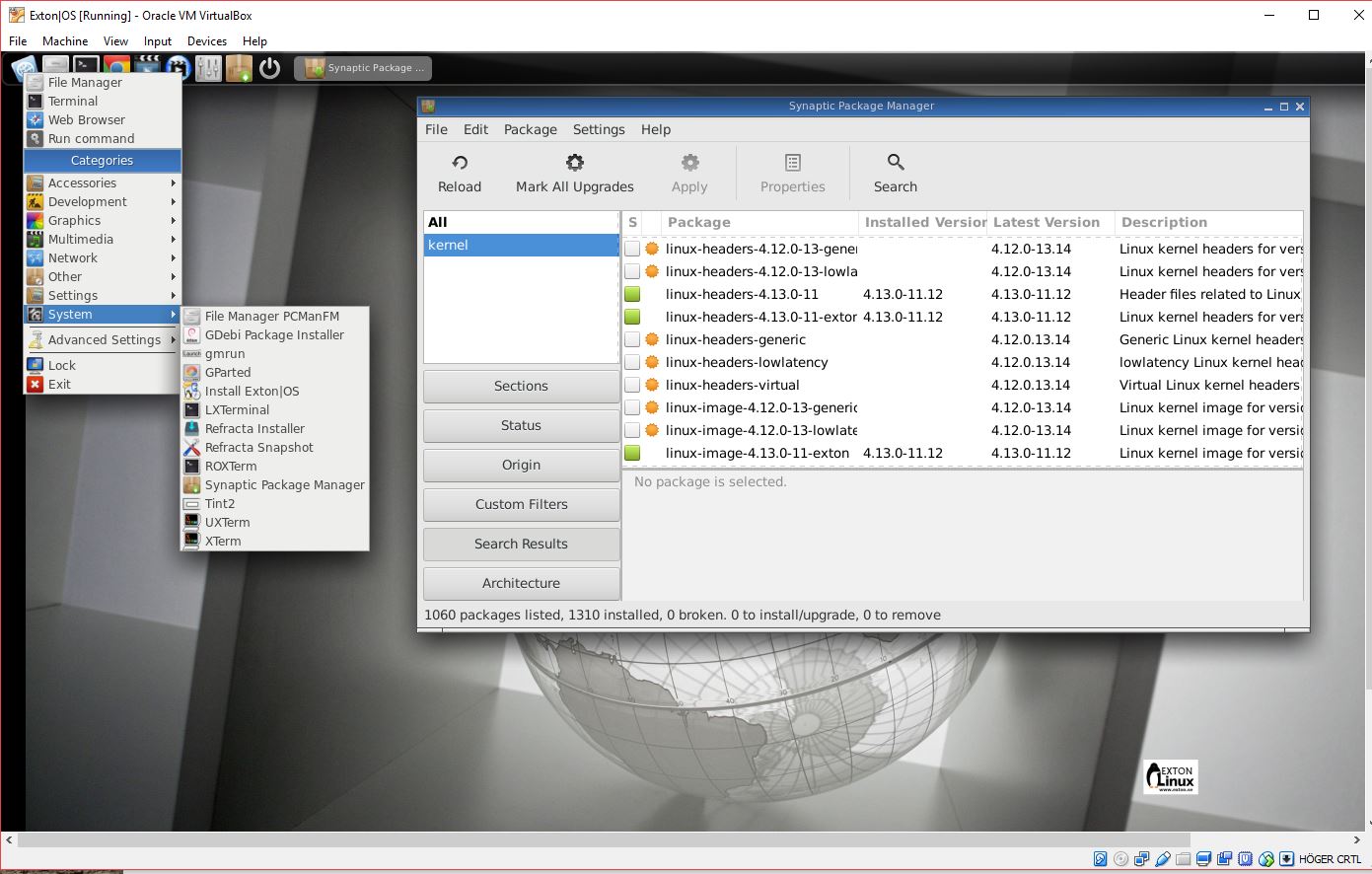
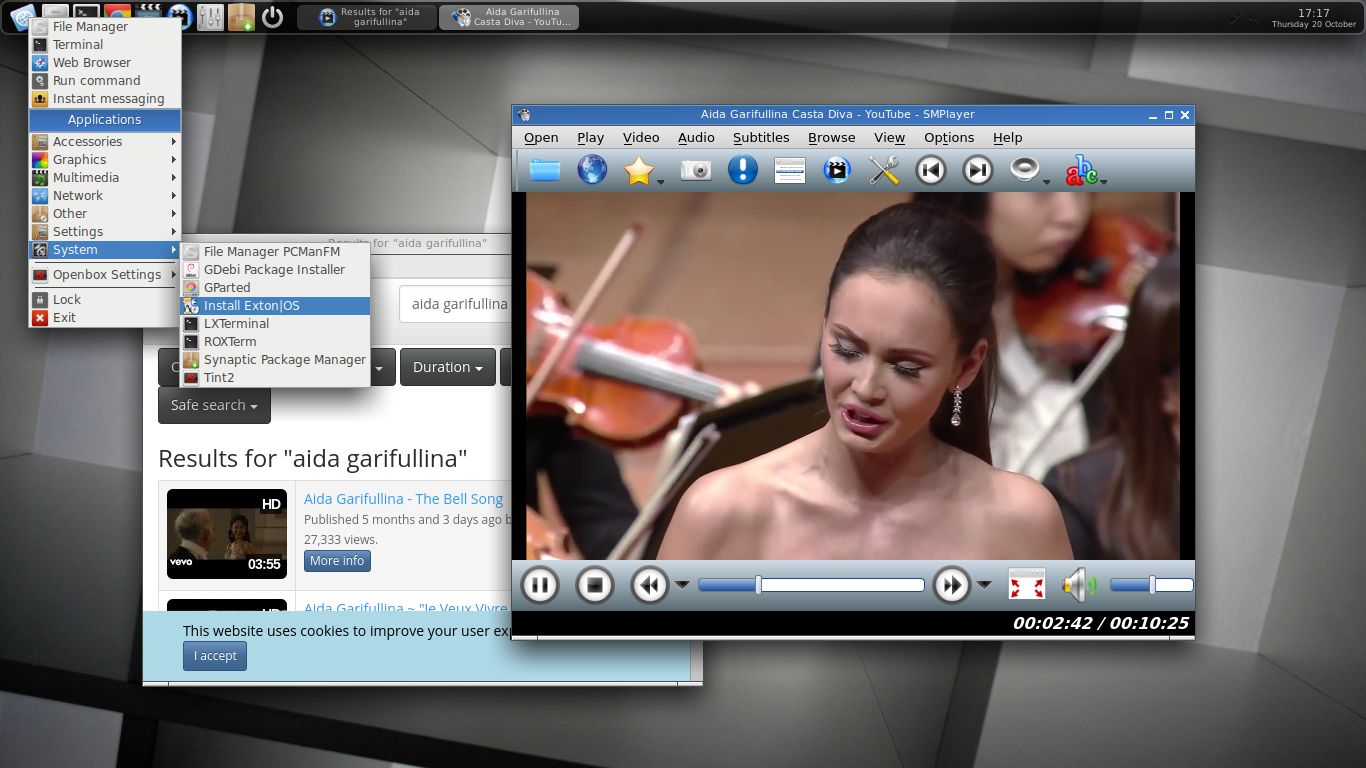
2. Screenshot of Exton|OS Light running in VirtualBox
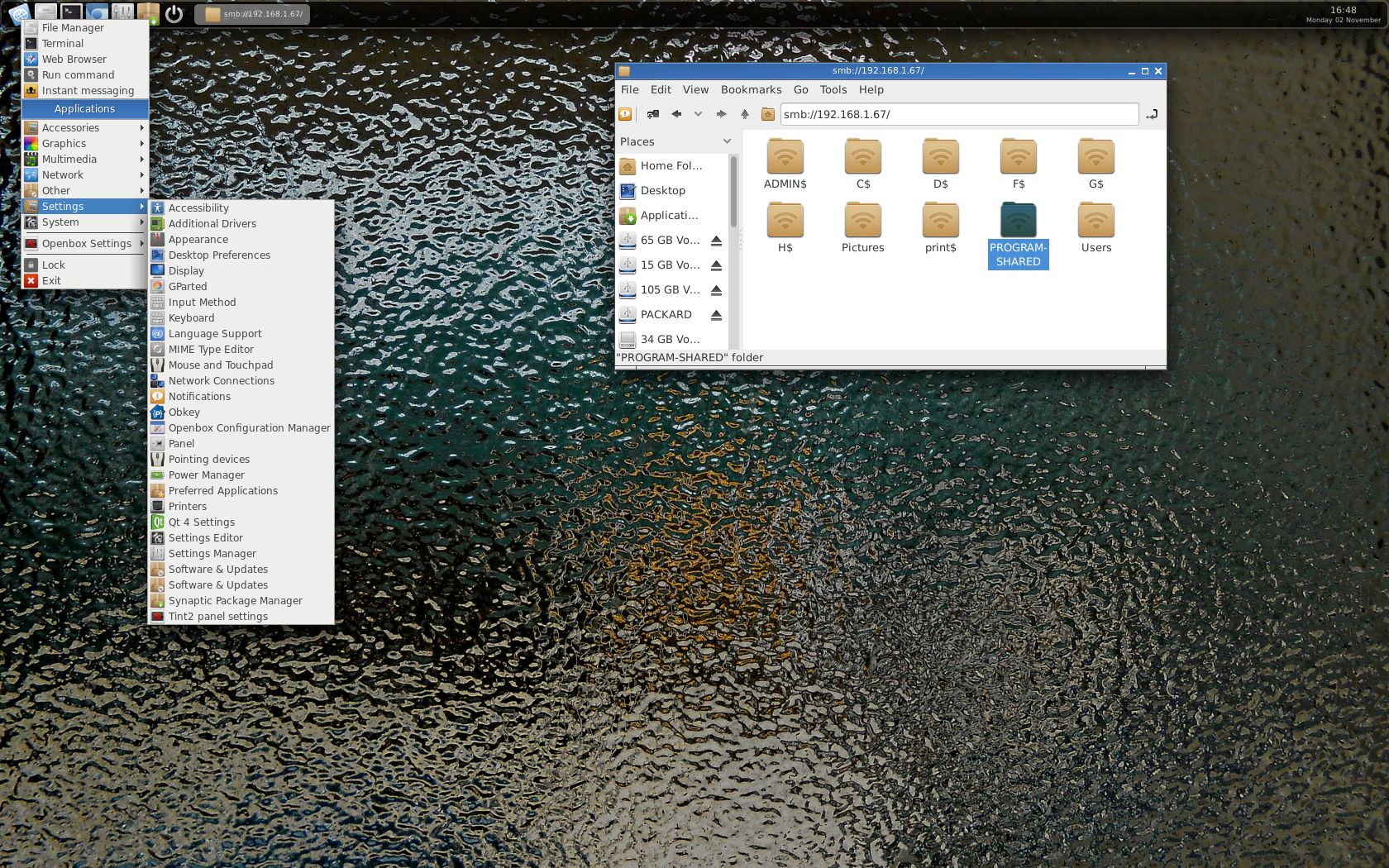
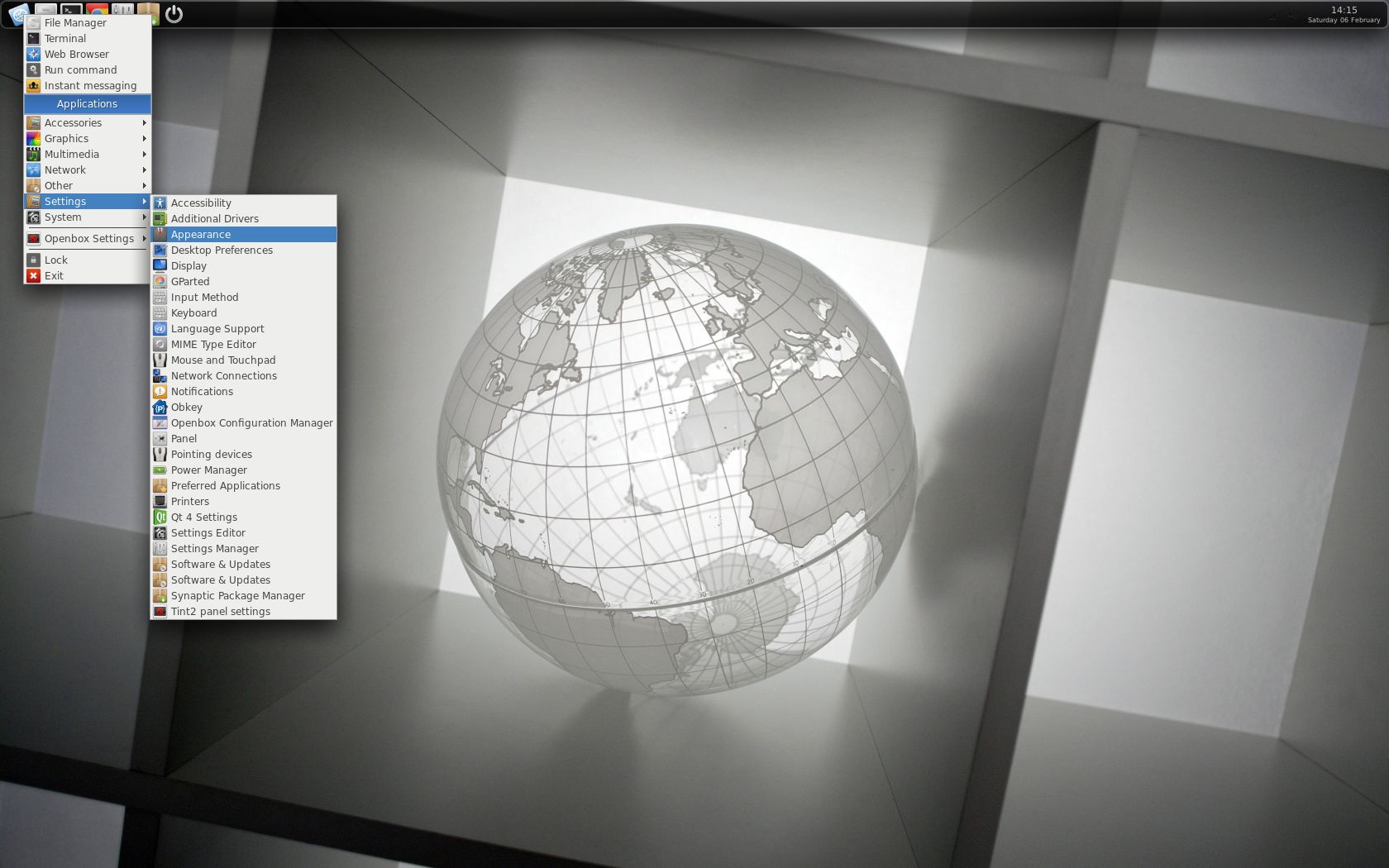
3. Screenshot of Exton|OS Light’s Openbox Desktop
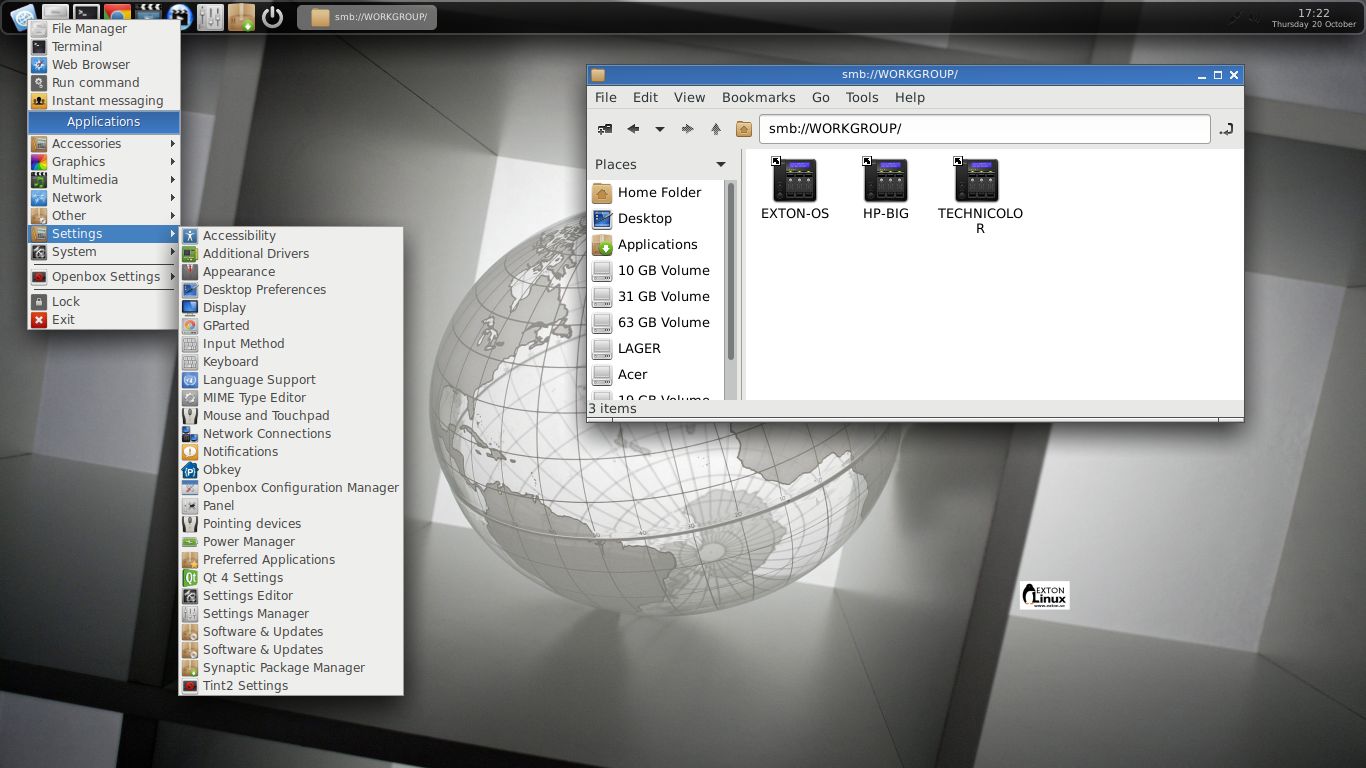
4. Screenshot of Exton|OS Light’s Openbox Desktop when Samba is used
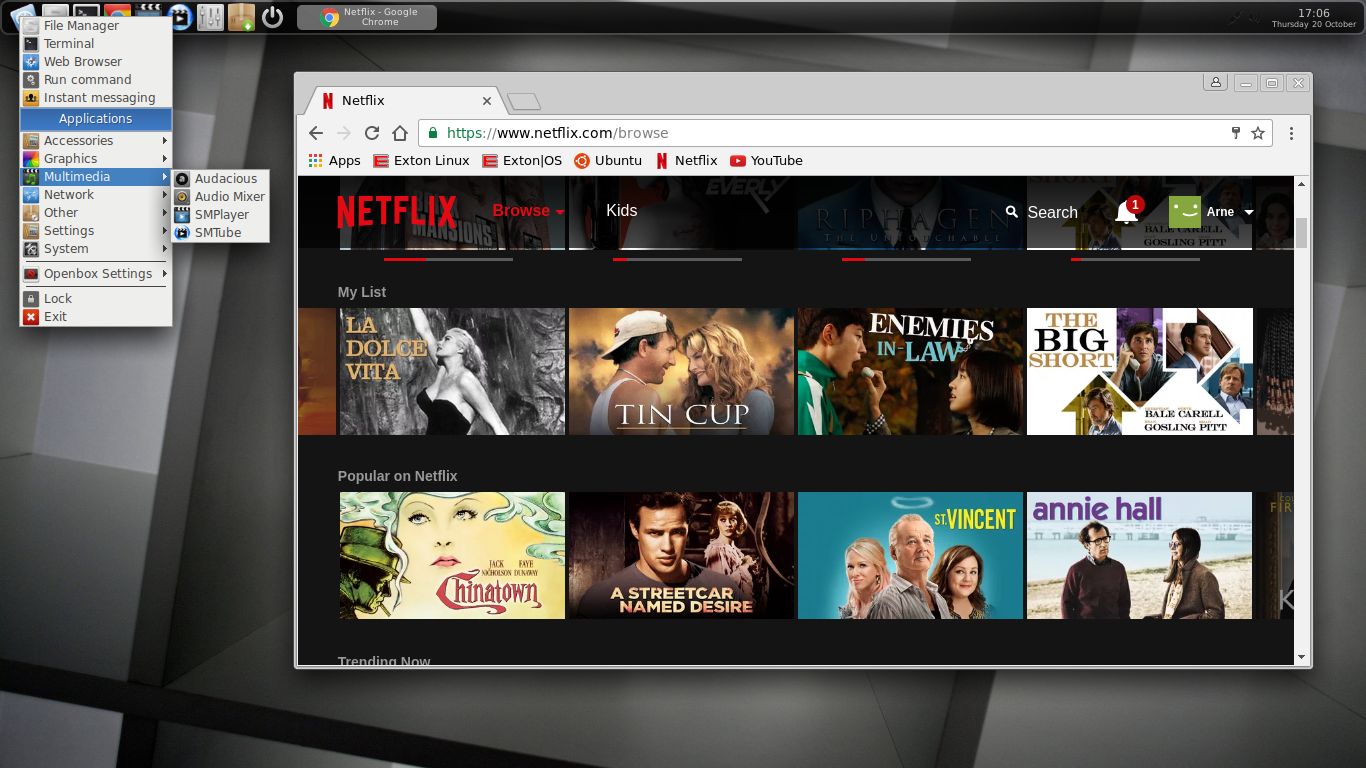
5. Screenshot when Google Chrome with Netflix is running
6. Screenshot when Spotify is running – (install Spotify with: sudo apt-get install spotify-client)

DOWNLOAD
This version of Exton|OS has been replaced by Build 180301

Other Exton Linux Live CD/DVD’s in English you may like to download…

Read about my Android-x86 Systems – Oreo, Nougat, Marshmallow, Lollipop and KitKat at
andex.exton.net – latest is AndEX Oreo 8,1!

and

about my Nougat, Marshmallow and Lollipop versions for Raspberry Pi 3/2 at
raspex.exton.se – latest is RaspAnd Nougat!